Going live
Turn a character into a live streamer that reads viewer comments and answers them out loud — with you in control of every word.
That division of labour is the whole design. Your encoder already knows how to stream; what it cannot do is decide which of four hundred comments deserves an answer, keep the character from repeating itself, or shut it up in half a second when it says something you'd rather it hadn't. That is what the operator console is for.
How the pieces fit
| Piece | Job | Who provides it |
|---|---|---|
| Comment bridge | Watches the live chat on the platform and forwards each comment to IAMX | IAMX ships one for TikTok; any other platform is a small script |
| Queue | Holds comments in order, one being answered at a time | IAMX |
| Operator console | Promote, skip, ban, hand-write answers, mute | IAMX — the page below |
| The character | Answers out loud in its own voice | IAMX |
| Renderer | Draws the character — Unreal window, browser page, or cloud MetaHuman | You choose |
| Encoder | Captures the renderer and pushes it to the platform | OBS, on your machine |
The operator console
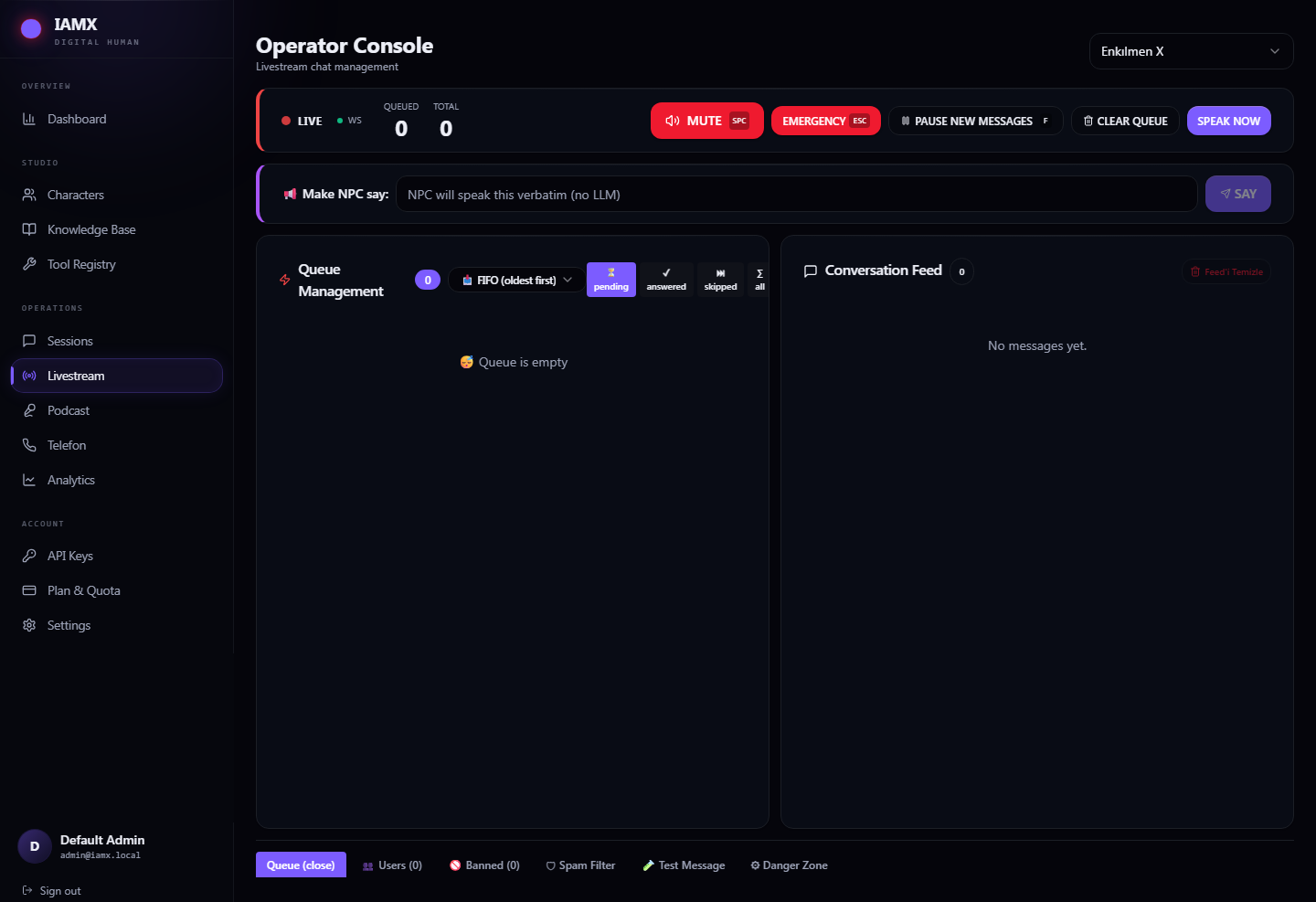
The status bar
| Indicator | Meaning |
|---|---|
| LIVE / FROZEN | Whether new comments are being accepted. Frozen means arriving comments are discarded, not held. |
| WS / POLL | Green WS means the console is getting instant updates. POLL means it fell back to refreshing every ten seconds — everything still works, it just feels laggier. Signing out and back in usually restores it. |
| NPC: IDLE / ANSWERING / SPEAKING | What the character is doing right now. If this indicator is missing entirely, no renderer is connected and nothing will ever be answered. |
| Queued / Total | Comments waiting, and rows currently loaded in the feed. |
The controls that matter when things go wrong
| Button | Key | What it does |
|---|---|---|
| MUTE | Space | Stops the character mid-sentence. The queue is kept. |
| EMERGENCY | Esc | Stops it and throws away every waiting comment. The panic button. |
| PAUSE NEW MESSAGES | F | Closes the door while you talk over the stream yourself. Press again to resume. |
| CLEAR QUEUE | — | Skips everything waiting, without interrupting the current answer. |
| SPEAK NOW | — | The unstick button. Forces the oldest waiting comment to be answered, and revives anything that got stuck half-answered. |
Making it say exactly what you want
Two controls bypass the AI completely and put your words in the character's mouth:
- 📢 Make NPC say — type a line and press SAY. The character speaks it verbatim in its own voice, after it finishes the sentence it is on. This is how sponsor reads, announcements and corrections are done.
- ✍️ Custom Reply on any comment — you write the answer, the character reads it, and the comment is marked as answered. Perfect for the question you want handled precisely.
Queue management
The left panel is the running order. Each card shows its position, who asked, from which platform, and how long ago. Per comment you can:
| Action | Use it when |
|---|---|
| Move Up | A good question is buried behind twenty greetings. |
| Skip | Not worth answering, but keep it in the record. |
| ✍️ Custom Reply | You want to answer this one in your own words. |
| Requeue | You skipped something you shouldn't have. |
| Delete | Remove it from the feed. |
| Ban | Stop this person contributing at all. You are asked for a reason. |
The Conversation Feed on the right is the running record of everything said, by viewers and by the character.
Where comments come from
TikTok — ready to run
A bridge ships with IAMX. It watches a TikTok live room and forwards every chat message. You need the broadcaster's handle, an IAMX API key and the character's ID.
cd tools/tiktok_capture
npm install
node index.js @broadcaster_handle
Put your key and character ID in config.json (or set IAMX_API_KEY and CHARACTER_ID as environment variables). The bridge prints a running count of captured, sent, failed and filtered comments every thirty seconds, and exits by itself when the broadcast ends.
| If the bridge prints | It means |
|---|---|
401 | The API key is wrong or has been revoked. |
404 | The character ID is wrong, or belongs to another workspace. |
429 / 403 | The spam filter rejected that comment, or that viewer is banned. Normal in bursts. |
| connection failure | The broadcaster is not actually live yet. |
Anything else
Comment intake is a single authenticated endpoint, so a bridge for Twitch, YouTube, Kick, Discord or your own site is a short script: read a message, POST it with the platform name, the username and the text. Run one bridge per platform and they all feed the same queue.
The spam filter
The 🛡 Spam Filter tab decides who gets through. It applies to your whole workspace, not just one character.
| Rule | Default | Notes |
|---|---|---|
| Rate limit | 5 messages / 10 seconds | Catches floods. |
| Repeated messages | same text 3× / 60 seconds | Catches copy-paste spam. |
| Contains URL | on | Catches link spam — and also anyone innocently sharing a link. |
| ALL CAPS | off | Only fires on messages longer than eight characters. |
| Banned words | empty | One per line, matched anywhere in the message. |
Going live, in order
The step people miss is number three. Read it twice.
- Check the character can speak. Open its Language & Voice tab and press Preview. Every word the character says on stream — including your sponsor reads — is produced by that voice setting.
- Open the console and select the character. Confirm the bar reads LIVE and the WS dot is green.
- Start the thing that renders the character. This is what actually answers comments. Either launch your Unreal build with cloud mode switched on (the settings block is on the character's Publish tab), or open the character's live page in a browser. Until a renderer is connected, comments pile up and nothing is ever answered. You will know it worked because NPC: IDLE appears in the status bar.
- Send a test comment. Use the 🧪 Test Message tab. Watch it move NEXT → 🎤 ANSWERING → ✓ and listen for the answer in your renderer. If that works, everything works.
- Set the spam filter for the audience you expect, and save.
- Start the comment bridge once the broadcaster is actually live. Watch for the connected message and the first arriving comments.
- Start your broadcast in OBS. Capture the Unreal window or the browser tab showing the character, add your audio, and go live on the platform as usual.
- Operate the show. Promote good questions with 1–9, skip the noise, hand-write the answers that matter, and keep Space under your thumb.
When something goes wrong
| What you see | What it actually is | Fix |
|---|---|---|
| One comment stuck on 🎤 ANSWERING, queue frozen behind it | The renderer that took the comment crashed or lost its connection and never reported back | Press SPEAK NOW. It revives the stuck comment and pushes the queue along. |
| Queued climbs, nothing is ever answered | No renderer is connected — the tell is that the NPC: indicator is missing | Start the Unreal build or open the character's page. Check you are using the right character ID. |
| The bridge says "sent" but the queue stays empty | Intake is frozen (frozen comments are discarded), or the viewers are being auto-banned | Press F to resume intake; check the 🚫 Banned tab and loosen the spam rules. |
| The character answers everything twice | Two renderers are connected to the same character — usually a forgotten playground tab in another window | Close the stray tab. Only one renderer per character during a show. |
| Everything vanished mid-stream | Someone pressed EMERGENCY or CLEAR QUEUE | Switch the queue filter to ⏭ skipped to confirm what happened. |
| The character starts reading comments on its own during a podcast | Podcast mode lost its on-air state | See Podcast mode — press Stop on the podcast page. |