WhatsApp Business
Let a character answer your WhatsApp Business number in text and voice messages, and run every chat from a live inbox where your team can step in.
The character answers WhatsApp messages sent to its number — text, voice messages, photos and documents — with its own voice, model, knowledge base, memory and tools. The WhatsApp inbox keeps everything that comes in and goes out for the period you choose. Your team can read every chat, answer, send files, or stop the bot and take over a conversation.
The conversation is always started by the customer. IAMX does not send template (business-initiated) messages and does not handle WhatsApp voice or video calls.
Where to find it
| Place in the studio | What you do there | Who |
|---|---|---|
| My workspace › Settings › WhatsApp Business | Connect your WhatsApp Business account, choose which character answers each number, set how long messages are kept. | Owner and admins change it; others see it read-only. |
| Character editor › Channels › WhatsApp | How this character behaves on WhatsApp: on/off, greeting, reaching a person, voice replies, read receipts. | Anyone who edits the character. |
| Top bar › Channels › WhatsApp | The live inbox: every conversation of your characters, operator replies, files, takeover. | Owner, admins and members write; viewers only read. |
The inbox needs a signed-in studio session; it cannot be opened with an API key.
What you need from Meta
You use your own Meta assets:
- A verified Meta Business account
Business Verification completed in Meta Business Settings.
- A WhatsApp Business Account (WABA)
With the phone number your customers will write to.
- Your own Meta app
An app in the Meta App Dashboard with the WhatsApp product added. Because you reach your own data with your own app, Meta’s App Review is not needed for this.
| IAMX field | Where you find it in Meta |
|---|---|
| Access token | A permanent System User token (Business Settings › System users), see below. |
| App secret | App Dashboard › App settings › Basic. It proves that webhook calls come from Meta. |
| WhatsApp Business Account ID (WABA ID) | WhatsApp Manager, or App Dashboard › WhatsApp › API Setup. Needed to list your numbers and to connect the webhook automatically. |
| Phone Number ID | App Dashboard › WhatsApp › API Setup. Only needed if you do not enter a WABA ID. |
Create the access token
- Add a system user
Business Settings › System users › add a new system user.
- Assign assets
Give it Manage app on your app and Full control on the WhatsApp Business Account.
- Generate the token
Select your app, set the expiry to Never, and grant
business_management,whatsapp_business_messagingandwhatsapp_business_management. - Copy it
Meta shows the token once. Paste it into the IAMX Settings card.
Connect WhatsApp Business
- Open the Settings card
Open My workspace › Settings and find the WhatsApp Business card.
- Enter your credentials
Fill in Access token, App secret and WhatsApp Business Account ID (WABA ID), then Save. The token and app secret stay on the server and are never shown again; the card shows only the last four characters of the token.
- Test the connection
Test the connection checks the token and the WABA at Meta and lists the phone numbers on the account.
- Connect the webhook
The card shows a Webhook URL and a Verify token made for your workspace. They are created on the first save and never change. Choose Connect the webhook to subscribe your WABA automatically; it needs the WABA ID and a saved app secret. Or connect it by hand: Meta App Dashboard › WhatsApp › Configuration › Webhook › Edit, paste the webhook URL and the verify token, and choose Verify and save.
- Subscribe to messages
In the Meta App Dashboard, under WhatsApp › Configuration › Webhook fields, subscribe to the
messagesfield. Without it no messages reach IAMX. - Assign a character to the number
See the next section. Until a number has a character, its messages are not answered.
The card’s badges show the state of the connection:
| Badge | Meaning |
|---|---|
| Connected / Not connected | Whether credentials are saved. |
| Token invalid | Meta rejected the access token: it expired, was revoked or lacks a permission. |
| Last drop | A recent message was not answered: no character is assigned to that number, the plan does not include WhatsApp, or the character uses a realtime voice model. The card says which. |
| Storage full | The WhatsApp storage quota is used up; new media is not kept. |
Remove deletes the access token and app secret, and your characters stop answering on WhatsApp. The webhook URL and the verify token stay the same, so you can reconnect later without changing Meta’s settings.
Choose which character answers each number
Under Numbers and characters on the same card, every number on your WABA is listed with its Number and Verified name. Choose a Character for each; the assignment is saved immediately.
- A number has one character. Choosing it for another character moves it there.
- A number set to Unassigned shows a red does not answer badge. Messages to it are not answered.
- Characters that use a realtime voice model (Gemini Live or OpenAI Realtime) are greyed out with “(realtime model, not supported)”: they cannot answer on WhatsApp.
- Without a WABA ID, use Assign a number by hand: enter the Phone Number ID from API Setup, optionally a Number shown, and choose Assign.
Cloning a character does not copy its WhatsApp number or its chats.
Character options
In the character editor, open Channels › WhatsApp. The settings save with the toolbar Save.
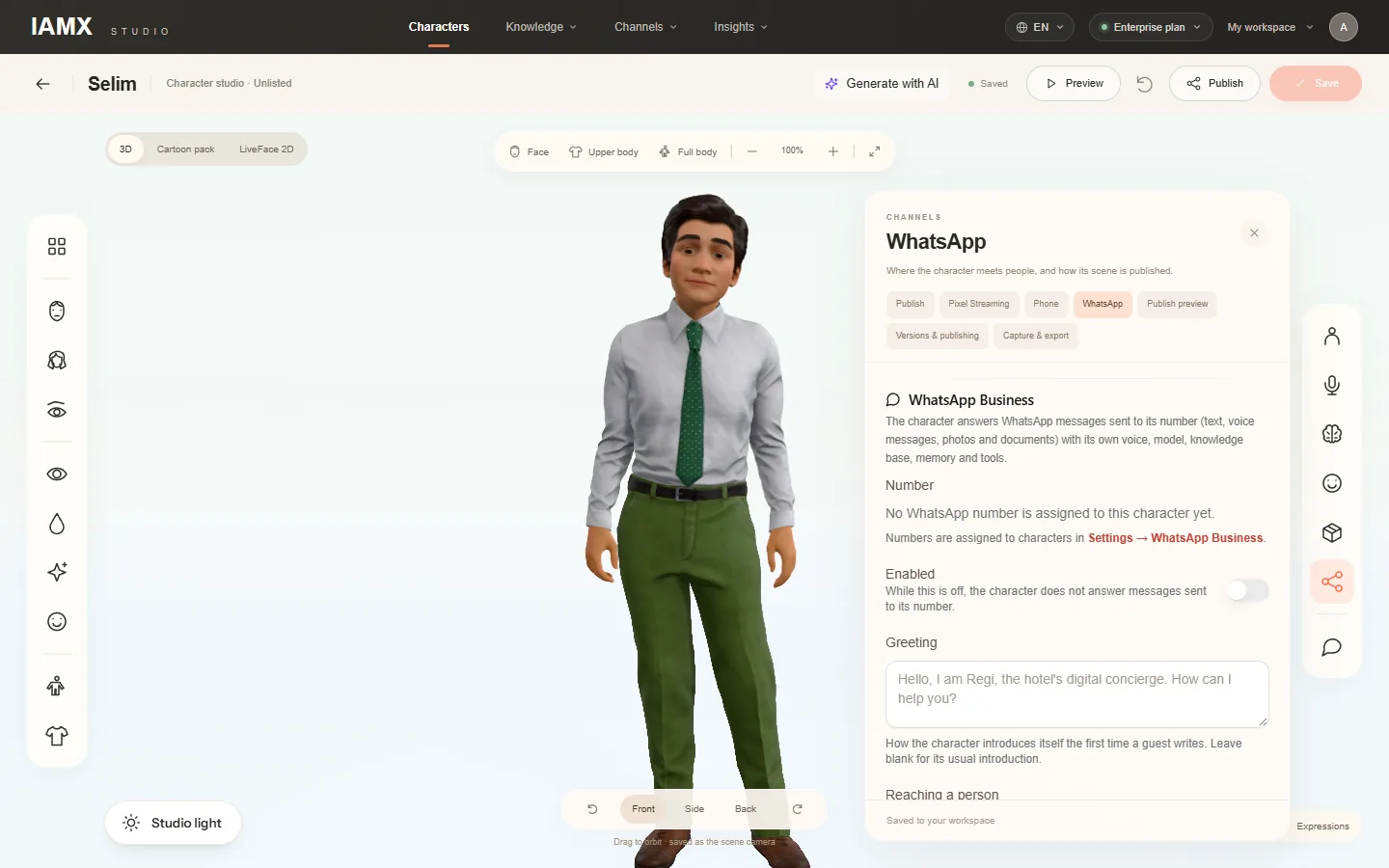
| Setting | What it does |
|---|---|
| Number | Read-only. Shows the number assigned to this character in Settings › WhatsApp Business. |
| Enabled | While this is off, the character does not answer messages sent to its number. Locked for a character with a realtime voice model; choose another model on Core AI first. |
| Greeting | How the character introduces itself the first time a customer writes, at the start of its first reply. No separate message is sent. Leave it blank for its usual introduction. |
| Reaching a person | What the character tells a customer who wants to talk to a person — for example your reception’s phone number. It is also added to the apology when the quota or the plan runs out. Optional, but recommended. |
| Voice replies | Voice for voice: answer a voice message with a voice message (the default), Always answer with a voice message, or Always answer in text. Voice messages are spoken in the character’s own voice. |
| Read receipts and typing | Marks the customer’s messages as read (blue ticks) and shows “typing…” while the character answers. On by default. |
A few replies always go as text, whatever the voice setting: answers that contain a link, a number of six or more digits or a price, and answers longer than 600 characters — they are hard to take in by ear and cannot be copied from a voice message. A voice reply is sent as a WhatsApp voice message without a separate text; the text is visible in the inbox. If the audio cannot be made, or would run longer than about two minutes, the reply goes as text.
The tab also repeats the Webhook URL and Verify token, and Open the call centre takes you to the inbox. The customer’s WhatsApp number is given to the character as context, so it can use it for bookings and contact details.
The WhatsApp inbox
Open Channels › WhatsApp in the top bar. The layout is like WhatsApp Web: conversations on the left, the selected conversation on the right. On screens narrower than 1024 px the two are stacked; choose a conversation, and use the back button to return to the list. The list and the open conversation update live (Live); if the live connection drops, the page shows Refreshing every 10 seconds.
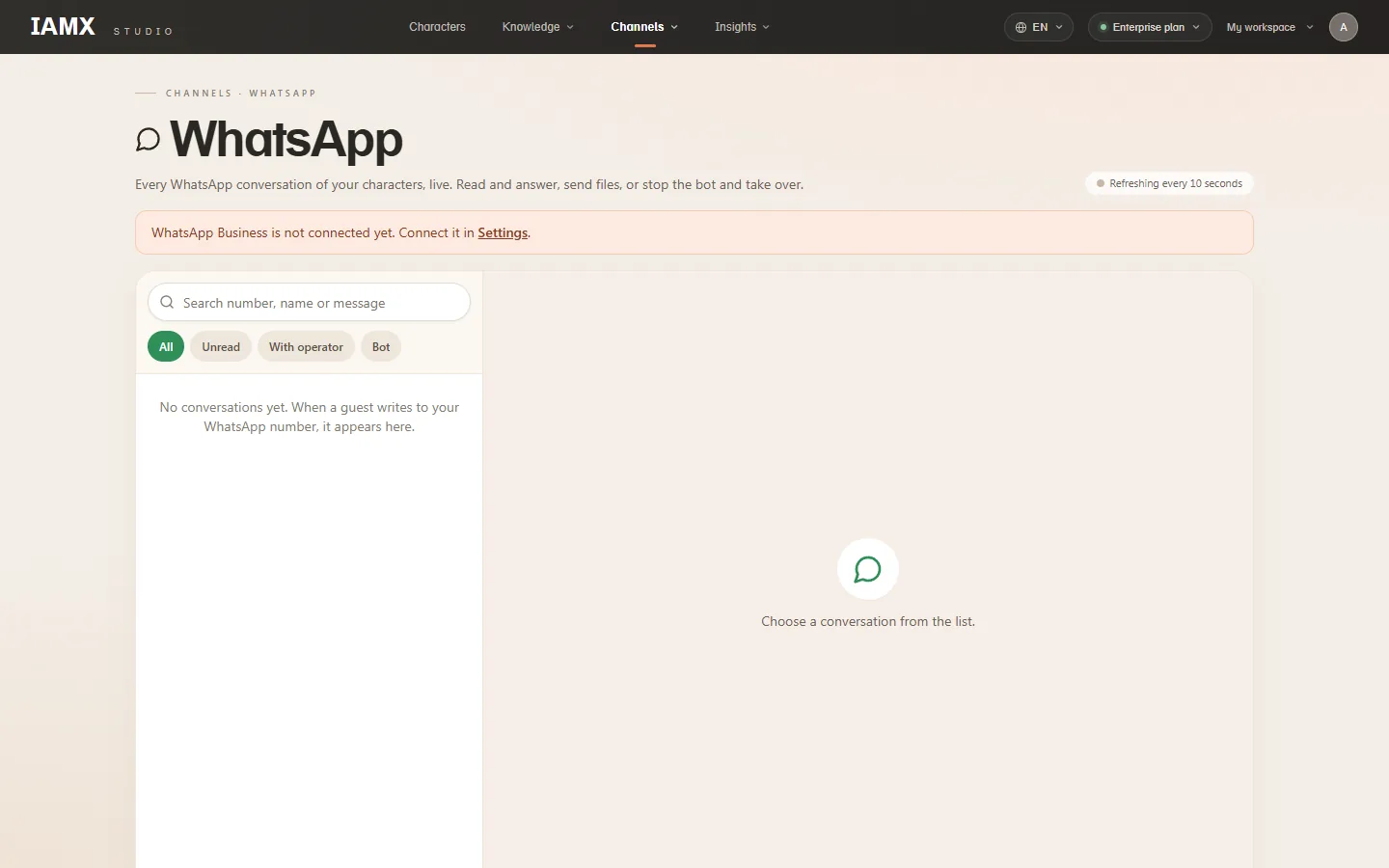
The conversation list
- Search number, name or message finds a conversation by phone number, profile name or message text.
- Filters: All, Unread, With operator and Bot, plus a character filter (All characters).
- Each row shows the profile name (or the number), the last message, the time, the unread count, and whether the bot or an operator is answering. The most recently active conversation is at the top.
An open conversation
- The header shows the profile name, number and character, the Stop the bot / Hand back to the bot switch, and the 24-hour window, for example 24-hour window open · 3 h 12 min left.
- Messages are grouped by day: incoming on the left, outgoing on the right, with the sender of each outgoing message (Bot or the operator’s name).
- Photos open larger with a click; documents have a Download button; voice messages play with their Transcript underneath; videos load on request; locations open in maps. Files the bot cannot read, such as spreadsheets or videos, are still kept for you.
- Grey system notes in the middle record events: an operator took over or handed back, a message could not be sent, a message arrived too late and was not answered, the bot could not answer (quota, plan or an error).
Every incoming message raises the unread count; opening the conversation resets it. While the bot is answering and Read receipts and typing is on, the customer sees blue ticks straight away. While an operator has the conversation, the blue ticks are sent when someone opens it in the inbox.
Send messages and files
- Type in Write a message. Enter sends, Shift+Enter starts a new line. What you type is sent as written; long text is split into parts of up to 4,000 characters.
- Attach a file, add an optional caption (Add a caption (optional), up to 1,024 characters; audio is sent without a caption) and choose Send.
- You can write while the bot is on; the bot then keeps answering too, and the line above the composer reminds you. To run the conversation alone, choose Stop the bot first.
- Operator messages do not use your IAMX quota.
- Viewers can read conversations but cannot write or stop the bot.
| Type | Formats | Up to |
|---|---|---|
| Image | JPEG, PNG | 5 MB |
| Document | PDF, Word (DOCX), Excel (XLSX), PowerPoint (PPTX), TXT | 25 MB |
| Audio | MP3, OGG | 16 MB |
| Video | MP4 | 16 MB |
Each sent message shows its delivery state: Sending, Sent, Delivered, Read, Played (voice messages), or Not delivered with Meta’s error code. If the customer has turned off read receipts, Read does not appear.
Stop the bot and take over
- Stop the bot moves the conversation to an operator. A bot reply that is being prepared is cancelled, and the bot stays silent in this conversation. New messages are still saved and counted as unread. A system note records who took over.
- Hand back to the bot lets the bot answer again. It sees what you wrote in the conversation history and carries on from there.
- The mode belongs to one conversation; the bot keeps answering all the others.
The 24-hour window
WhatsApp accepts a business’s free-form messages only within 24 hours of the customer’s last message. The conversation header shows the time left. When the window is closed, sending is still attempted, but Meta rejects it (error 131047) and the message shows as Not delivered. Since IAMX does not send template messages, wait for the customer to write again; that reopens the window.
Retention and storage
On the Settings card, Keep messages and files for sets how long the inbox keeps conversations and files: 7, 30, 90, 180 or 365 days, or Forever. The default is 180 days. Messages and files past this period are deleted every night, permanently. A new period applies to everything already stored: if you go from 30 days to 7, records older than 7 days are deleted that night.
Storage used shows how much of the WhatsApp storage quota is in use (2 GB per workspace by default). When it is full, new media is not kept and the card shows Storage full; shorten the retention period or contact IAMX about the quota.
Delete a chat
Owners and admins can remove a single conversation at once: choose Delete chat in the conversation header and confirm with Delete (Cancel keeps it). The chat and all its messages and files are deleted immediately and permanently.
- The customer is not notified. If they write again, a new conversation starts.
- Only the inbox record and its files are removed. The bot’s conversation records under Insights › Sessions and Insights › Analytics, and the character’s memory of the customer, remain.
Limits
| Topic | Limit |
|---|---|
| Text | WhatsApp allows 4,096 characters per message; IAMX sends long text in parts of up to 4,000 characters. |
| Caption | 1,024 characters. |
| Photos from customers | Kept up to 5 MB. The bot looks at them when the character’s File & image attachments settings (Core AI) allow images. |
| Documents from customers | Kept up to 25 MB. The bot reads PDF, Word (DOCX), TXT, CSV, Markdown and JSON within the character’s attachment limits; other files, such as XLSX and PPTX, are kept and the bot says it cannot read them. |
| Voice messages from customers | Kept up to 16 MB; the bot transcribes up to 5 minutes. |
| Videos from customers | Kept up to 16 MB; the bot does not watch them and says so. |
| Voice replies | About 2 minutes at most; a longer answer goes as text. |
| Several quick messages | Short messages sent within about 1.5 seconds are answered together in one reply. More than 20 messages a minute from one customer are saved but not answered. |
| Late messages | A message older than 10 minutes is answered with an apology for the delay; one older than 23 hours is not answered (a system note shows it). |
| Files over a limit | Not downloaded; the message row shows that the file was not kept. The same happens when storage is full. |
The bot also reads shared locations (with a map link) and button or list replies as text. Stickers and reactions are kept but not answered.
Costs and quota
- Meta bills WhatsApp messages to your own Meta account, at Meta’s current rates. Bot and operator replies are both service messages; IAMX does not send template messages.
- IAMX: each bot reply uses your monthly quota units like any other conversation turn (messages answered together count as one reply). When the quota is used up, the bot tells the customer it cannot help right now, together with your Reaching a person text. Operator messages do not use IAMX quota. Media counts toward the WhatsApp storage quota.
Data and policy
IAMX stores the customer’s WhatsApp number and profile name, every incoming and outgoing message, voice message transcripts, all media, and the bot’s voice messages, for the retention period you set. Bot replies are also recorded in Insights › Sessions and Analytics, which follow the platform’s general retention, not the WhatsApp setting. The customer’s full number is visible in the inbox. Messages pass through Meta’s infrastructure. As the business that runs the number, you are responsible for informing customers and for the legal basis of processing (for example under KVKK or GDPR).
Troubleshooting
| Symptom | Likely cause | What to do |
|---|---|---|
| Verify and save fails in Meta | Wrong verify token or URL, or the card was not saved yet. | Save the card, then copy the webhook URL and verify token from it again. |
| Messages do not reach the inbox | The app secret is wrong or was renewed in Meta, or the URL is wrong. | Enter the current app secret from App settings › Basic and copy the URL from the card. Meta retries undelivered notifications for up to 7 days. |
| No messages at all, no error | The messages field or the WABA subscription is missing. | Repeat the webhook steps in Connect WhatsApp Business. |
| Token invalid badge | The token expired, was revoked or lacks a permission. | Generate a new System User token (expiry Never, the three permissions), enter it, then Test the connection. |
| A red Not delivered (error 131047) | The 24-hour window is closed. | Wait for the customer to write again. |
| Error 131056 | Several messages to the same customer within six seconds. | The bot waits and retries by itself; as an operator, send again after a few seconds. |
| does not answer badge | The number has no character. | Assign a character under Numbers and characters. |
| Last drop badge | A message was not answered: no character, WhatsApp not in the plan, or a realtime model. | Check the assignment and the plan, and that Enabled is on in the character’s WhatsApp tab. |
| Messages appear but the bot does not answer | The conversation is with an operator, or the character uses a realtime model. | Hand back to the bot, or assign a character with another model. |
| Storage full badge | The storage quota is used up. | Shorten the retention period or contact IAMX about the quota. |
Next steps
Give the character the documents it should answer from on Mind & knowledge, tune its voice on Language & voice, and review conversations in Sessions & analytics. For phone calls, see AI phone assistants.
Maintained by IAMX. Updated .