Voice and microphone
Choose the character’s speaking voice, test it and understand how browser microphone input becomes a message.
Choose and preview a voice
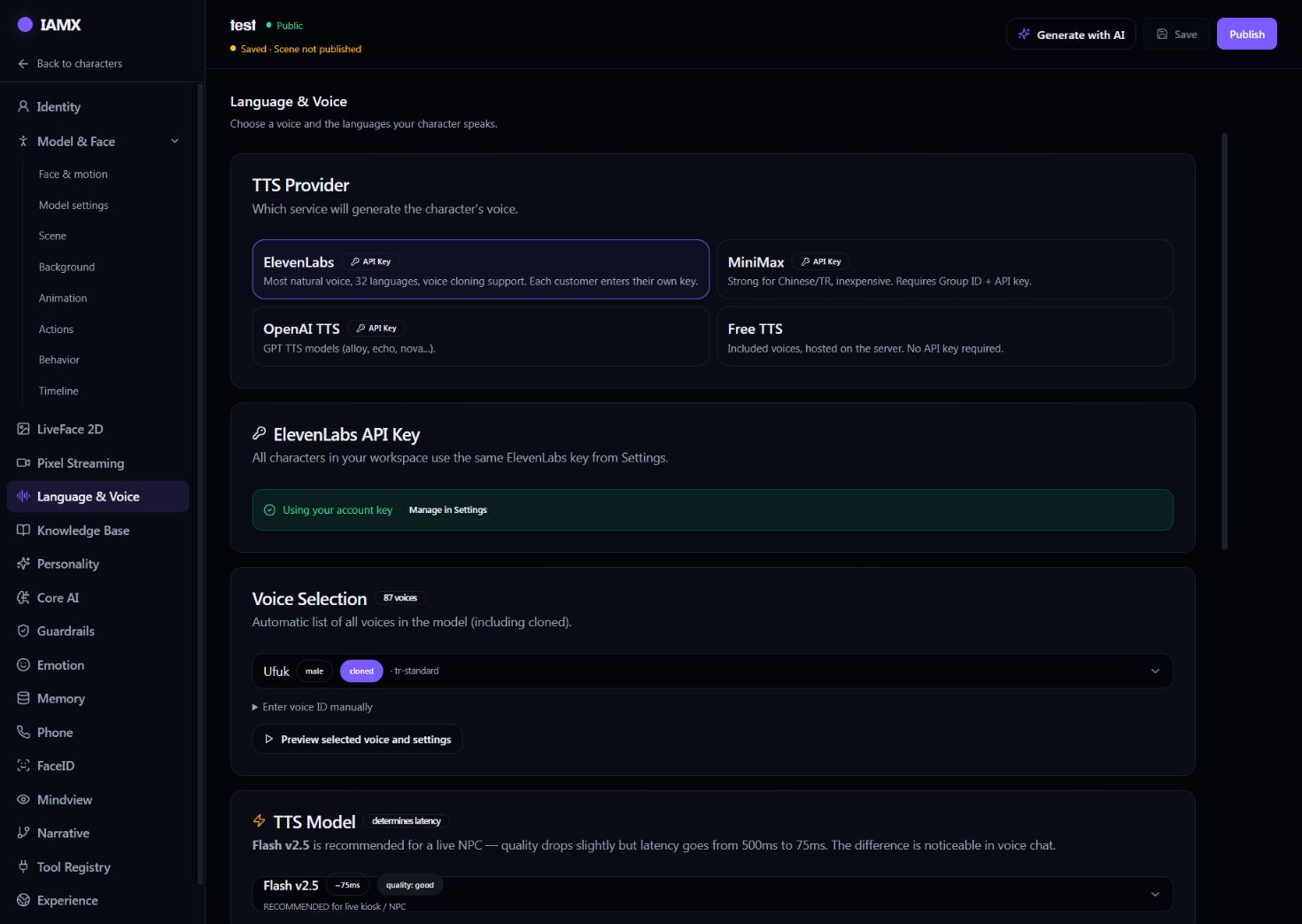
- Open the character’s Language & Voice section.
- Select a TTS Provider. For ElevenLabs, use Manage in Settings to manage the account key used by your characters.
- Choose a voice in Voice Selection. The available list depends on the provider, account access and key permissions. Where offered, Enter voice ID manually lets you specify a voice directly.
- Choose a supported TTS Model and use Preview selected voice and settings. Save after choosing the voice.
- Test a real reply in Model & Face → Test. A successful voice preview does not test the AI model or your knowledge sources.
Realtime voices
When Core AI uses a supported realtime speech model, audio comes from that model and the panel shows its own voice choices. ElevenLabs voice IDs and realtime voice names are not interchangeable. Revisit Language & Voice after changing the conversation mode.
Speak in the browser
Use HTTPS and allow the microphone when the browser asks. In the standard web conversation, tap the microphone for hands-free input or hold it for push-to-talk. Hands-free mode sends the final recognised phrase automatically; push-to-talk sends when you release the microphone button.
The standard GLB web experience tries browser speech recognition where supported. If the browser does not provide that API, the audio capture route can send speech to the configured transcription service. Browser support, permissions and connectivity vary. This does not mean that browser dictation works offline.
If browser recognition cannot start, follow the shown retry or microphone message. A different rendering or realtime mode can use a different speech path, so test the actual widget your audience will use.
If the result is wrong
| Symptom | What to check |
|---|---|
| No voice or only one voice appears | Check the selected provider and account key, voice access and provider permissions. A saved voice ID may still appear even if the catalogue could not be loaded. |
| Text arrives but no sound | Tap inside the experience to allow audio, check the mute control and run the voice preview. Read any provider quota or key error. |
| Microphone keeps listening | Check browser permission and selected microphone. Try a short phrase, release push-to-talk, and inspect the on-screen error before retrying. |
| Words are misheard | Use the intended language, reduce background noise and use headphones. Compare a typed question with the recognised phrase. |
| Replies feel slow | Compare typed and spoken questions. Voice activity detection, transcription, model generation, tools, speech synthesis and network time all contribute; a provider’s advertised speech latency is not total response time. |
Share useful diagnostics
For support, provide the browser, device, time, character and exact error text. Do not paste an API key or a student’s private conversation. See the troubleshooting checklist.
Updated . Screenshots show example configurations; your available options depend on the character and account.