Knowledge Bank
One library for the whole workspace — and a switch per character deciding who may read what.
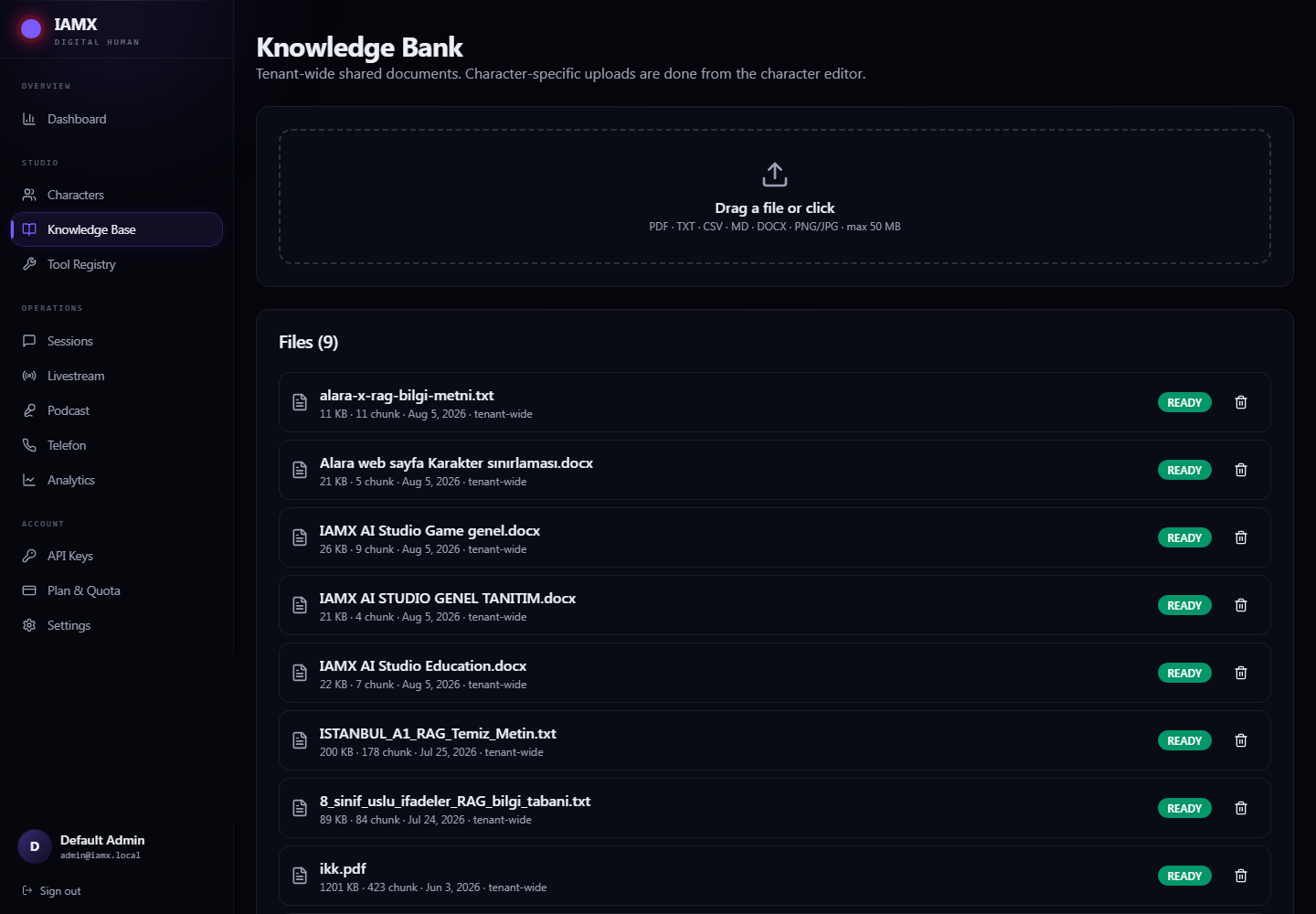
The Knowledge Bank is how a character stops improvising and starts answering from your actual material — the price list, the policy document, the product manual. Files live here at workspace level; each character is then granted access to specific ones on its own Knowledge Base tab.
What you can upload
| Format | Notes |
|---|---|
| The most common source. Text is extracted page by page. | |
Word (.docx) | Handled directly — no need to export to PDF first. |
| Text and Markdown | Ideal, because you control exactly how it is written. |
| CSV | Good for price lists and tables of specifications. |
| Images — JPG, PNG, WebP | The text inside them is read automatically, so a photographed menu or a screenshot of a table works. |
Maximum 50 MB per file. Drag several at once and each is processed independently.
What happens after upload
- Processing — the file is read, split into passages, and indexed so it can be searched by meaning rather than keyword.
- Ready — the file can now be used. The list refreshes itself, so you can watch it change.
- Failed — the file could not be read. Usually a scanned PDF with no text layer, or a file whose extension does not match its actual contents.
Deleting
The trash icon removes a file from the workspace, its indexed passages, and every character's access to it, immediately and without a confirmation prompt. There is no undo — re-upload if you delete the wrong one.
Writing documents that retrieve well
Retrieval finds passages, not documents. How you write has more effect on answer quality than which model you pay for.
| Do | Instead of |
|---|---|
| One file per subject — "Returns policy", "Delivery times", "Warranty" | A single 200-page company handbook |
| Headings that read like customer questions — "How long does delivery take?" | "Section 4.2.1 — Logistics" |
| The answer immediately under the heading | An answer spread across three pages |
| Spelling out the subject in each section | "As mentioned above, it is 14 days" |
| Plain sentences | Tables of abbreviations with no context |
Checking it works
Every character's Knowledge Base tab has a Search Test box. Type the question a real customer would ask — not the keyword you think is in the document — and confirm the returned passages actually contain the answer. If they do not, the fix is in the document, not in the character.