Your first Academy lesson
Prepare an avatar that teaches in your style, give it the right material and try the lesson yourself before assigning it to a student.
1. Apply and check your profile
On the Academy registration page, select Öğretmenim. Enter your name, email, password, subject, teaching levels and a short introduction. Upload your Öğretmenlik belgesi (e-Devlet mezuniyet belgesi) and read and acknowledge the teacher notice shown on the form.
In Profil ve başvuru, check the application status and any review note. A verification document can be a PDF, JPEG or PNG, up to 10 MB. If changes are requested, follow the note and upload the updated document here. You can prepare your avatar and lesson content while awaiting approval; approval is required before your profile opens to students and you can assign lessons.
An approval email is triggered when your application is approved. Your panel also shows the current status, so check it if the email has not arrived.
In the same section, add your Profil fotoğrafınız. Use Fotoğraf seç, drag the image to position your face, adjust the zoom and save. Use Fotoğrafı düzenle to crop a saved photo again; choose the original file again if you need a wider crop. JPG, PNG and WebP are supported up to 10 MB. This photo identifies you in the teacher directory; your lesson avatar is configured separately.
2. Prepare your avatar
Open Avatarım and work through these settings:
- Appearance: select a ready-made character or upload your own GLB model.
- Teaching personality: enter an avatar name, teaching background and explanation style. AI ile hazırlayın can draft a persona from a short description; review the suggested text before saving.
- Voice: choose a voice in Hazır ses seçin. To create a voice from your own recording, enter a name and use Kendi sesinizi yükleyin. Voice creation requires an approved teacher account and an available voice service.
- Classroom: choose the setting under Ders ortamınız.
- Movement: use Hazır hareketler to choose waiting, explaining, listening and greeting animations from the available library, or keep the defaults.
Press Avatar ayarlarını kaydet. The platform administrator manages the underlying AI and voice connections; you choose the teaching settings in Academy.
3. Add your lesson resources
Open Ders kaynakları. Upload PDF, Word (.docx), PowerPoint (.pptx), text (.txt) or Markdown (.md), or write a resource directly using Metinle kaynak ekleyin. Source files can be up to 20 MB.
These resources are the knowledge base your avatar can consult. Uploading a document does not automatically turn its layout into a narrated board presentation. You choose the relevant resources for each lesson and prepare the visible pages and narration in the lesson editor.
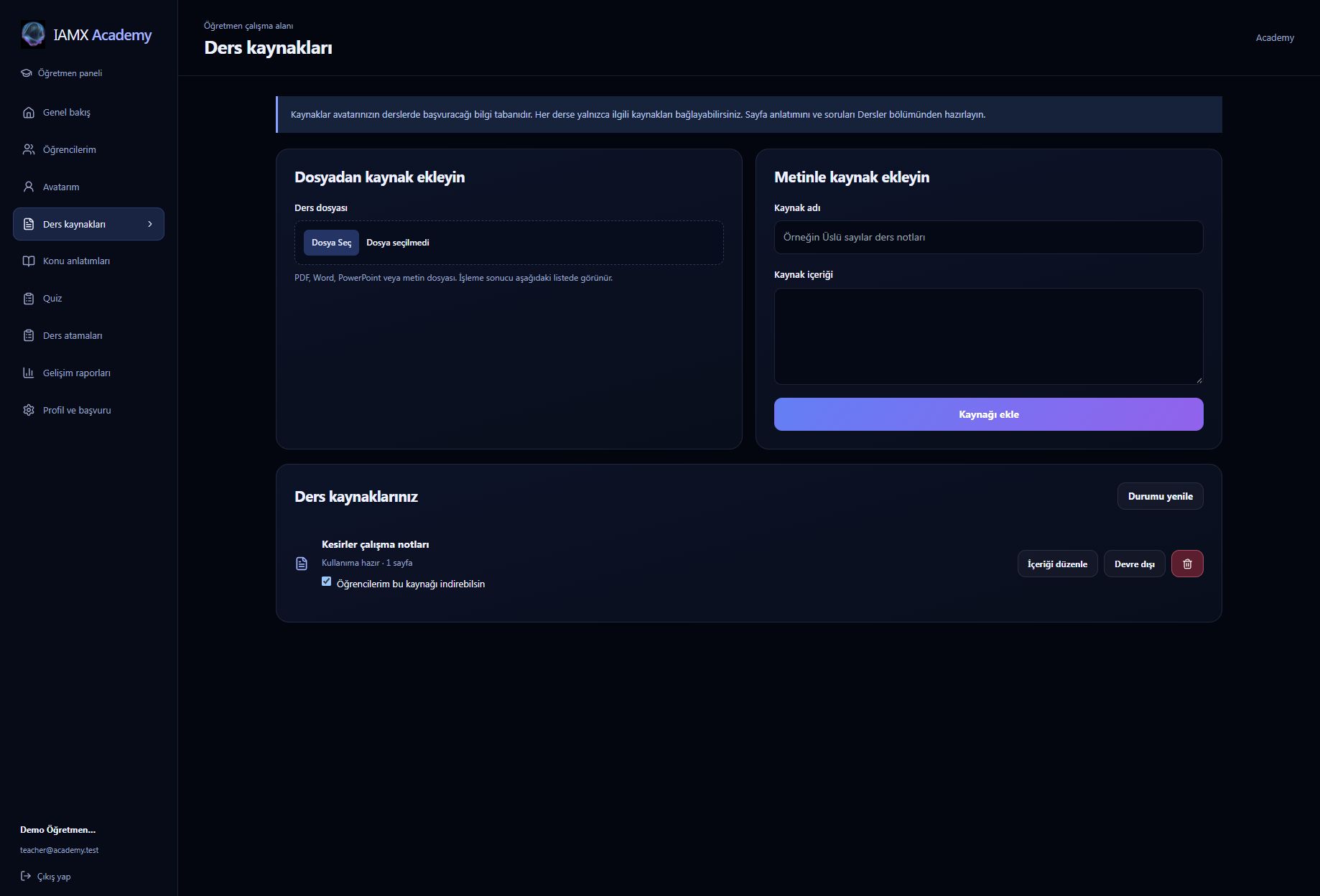
| Status | What to do |
|---|---|
| Hazırlanıyor | Processing is in progress. Use Durumu yenile to check again. |
| Kullanıma hazır | The resource is ready to use in a lesson. |
| Sayfalara metin eklenmeli | Readable text is missing. Open İçeriği düzenle, add the text for the pages and save. This can happen with scanned PDFs. |
| Hazırlanamadı | Read the displayed error, check the content and use Tekrar hazırla when ready. |
Text resources download as text files; uploaded documents download as files. Resources must remain enabled for student access. A source already used in an assignment cannot simply be deleted from the resource list.
4. Choose the right lesson type
Open Konu anlatımları for a guided lesson or a question-and-answer session. Use Quiz for a quiz. Give the activity a clear title and select only the resources it needs.
Guided lesson — Konu anlatımı
Add at least one page. A page can contain narration, board text, an image or a combination. Put what the avatar should say in Avatarın söyleyeceği metin and the material students should see in Tahtada gösterilecek metin. These do not have to be identical, but they should describe the same example.
Use Tahta görseli for a PNG, JPG or WebP diagram, and add a short image description. An image is optional; so is board text. Each page needs at least an image, board text or narration. Add an understanding check when you want the student to confirm they understood before continuing.
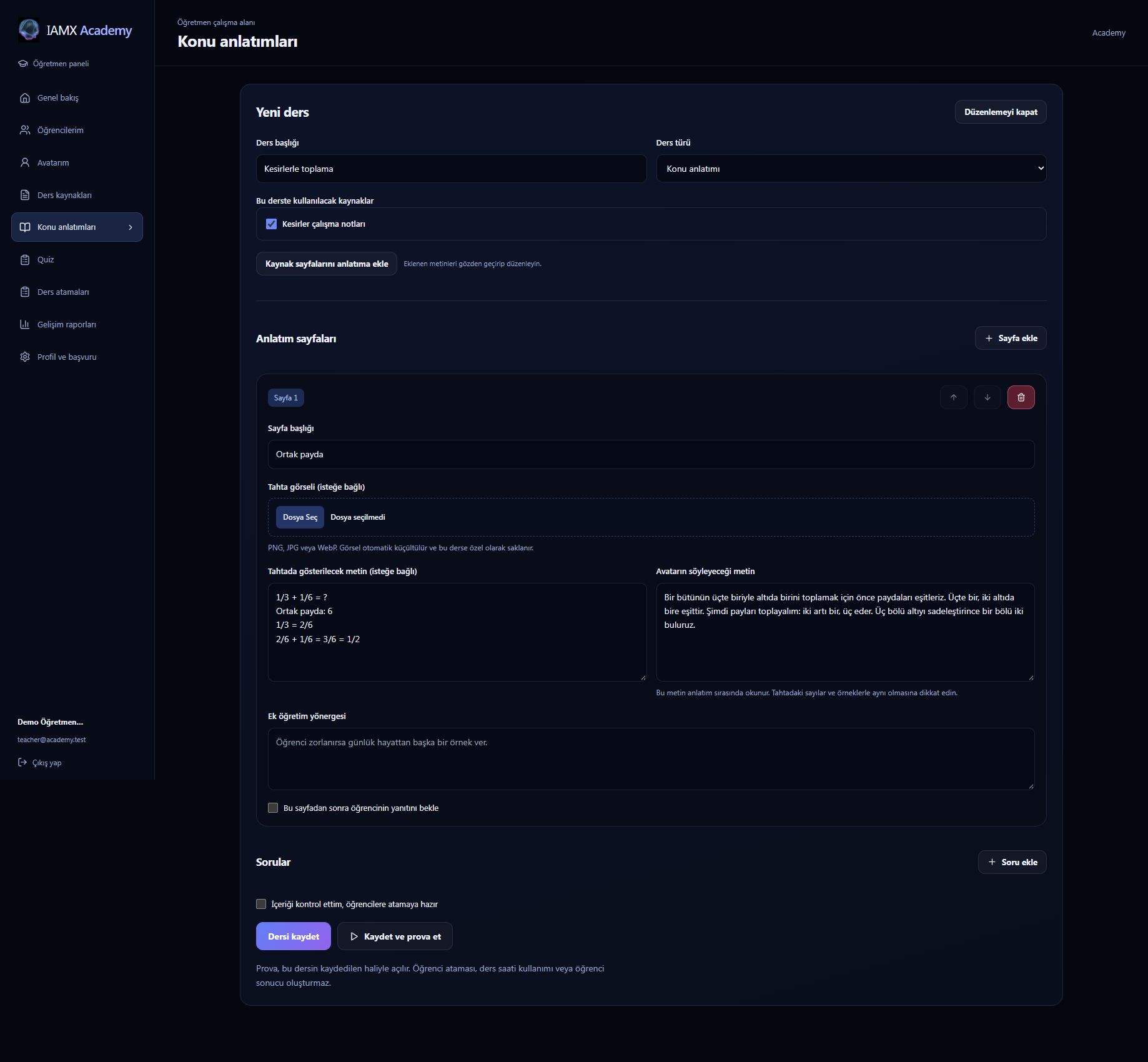
Split a long explanation into several pages. Each board-text or narration field has a 10,000-character limit; shorter sections also make the lesson easier to follow. During spoken narration, the board can follow progress through long content.
Student-led questions — Soru-cevap
Here, the student asks and the avatar answers. You do not need to add a narration page, board text or prepared question. A title is enough to create the session; guidance and selected resources make its scope more useful.
- Use Öğretmenin soru-cevap yönergesi to explain the topic, level and desired teaching approach.
- Add an optional Karşılama cümlesi for the start of the session.
- Add optional support cards with diagrams or notes if the student needs visual material.
- Enable Her yanıtı tahtada da göster to show answers on the board. With it off, the avatar can still use the board for useful explanations or when the student asks it to write there.
Switching a draft from Quiz to Q&A preserves its prepared questions, but those questions are not run during the Q&A session.
Check understanding — Quiz
Add at least one question. Enter the question text, at least two distinct answer options and the correct answer chosen from those options. Add a topic or learning objective to make the results easier to interpret, and a solution explanation for feedback.
The avatar presents the question and the student answers by choosing an option, speaking or typing. Feedback follows the student's response. A quiz is not a command for the avatar to solve every question immediately; the student's answers are what the activity records.
5. Rehearse before assigning
In the lesson editor, press Kaydet ve prova et, or use Prova et beside a saved lesson. Avatarım also has Kaydet ve prova et for a conversation focused on your avatar's voice and movements.
Start the rehearsal, listen to the narration, try a question and check the board. Rehearsal uses the saved settings and content. It creates no student assignment, deducts no student lesson hours and adds no student results. The rehearsal link expires after 30 minutes; open a new rehearsal from the teacher panel when needed. AI and voice services still need to be available.
6. Assign the saved lesson
- Review the activity, check İçeriği kontrol ettim, öğrencilere atamaya hazır and save.
- Choose Öğrenciye ata beside the lesson.
- Select one of your enrolled students and confirm the assignment.
- Check Ders atamaları for its status. The student finds it under Derslerim.
Students can also open Öğretmene bağlan and talk to your avatar without an assigned lesson, provided they have available time with you and your avatar is ready. See the student conversation guide.
7. Review student progress
Open Öğrencilerim → Öğrencimin durumu, or choose a student in Gelişim raporları. Review recorded study time, answers, correct results, topic performance and answer history. The report concerns the student's work with you.
Use AI raporu oluştur for a summary of strengths, topics to revisit and suggestions for the next lesson. One report can be generated per student, per teacher, per day. The daily limit resets at midnight in Türkiye (Europe/Istanbul); the page shows when another report is available.
The latest AI report remains saved when you leave and return. Kayıtlı raporu yenile reloads it; it does not generate another report. Use Güncel rapor oluştur when the next daily report becomes available. A student needs recorded lesson activity before an AI evaluation can be generated. Raporu indir downloads the displayed summary and available AI evaluation as a text file.
Reviewing other teacher applications
If the IAMX administrator grants you review access, Öğretmen başvuruları appears in your Academy menu. Read the applicant's profile and verification documents, then choose Öğretmeni onayla or write a review note and choose Düzenleme iste.
This permission is granted or removed in the IAMX administration panel under Academy → Teacher application reviews. It does not grant access to other teachers' students, billing or IAMX administration. Approval triggers an email notification; the result indicates whether delivery succeeded or needs attention.
When something is missing
| Problem | Check |
|---|---|
| I cannot assign a lesson. | Your teacher account must be approved, the lesson saved as ready and the selected student enrolled with you. |
| A student cannot see my PDF. | Keep the source enabled, then share it with students or attach it to their assigned lesson. Ask them to select your name in Ders kaynakları. |
| The avatar has no voice. | Select a voice, save the avatar and try a rehearsal. If the service is unavailable, contact the platform administrator. |
| An uploaded presentation does not look like its slides. | Resource processing extracts text. Add the visual slides or diagrams as board images in the lesson editor and write the narration you want. |
| I cannot change package prices. | The IAMX administrator manages the packages. The teacher panel does not set prices. |