Start learning in Academy
Choose your teacher, ask their AI avatar a question or open an assigned lesson. You can speak, type and follow examples on the board.
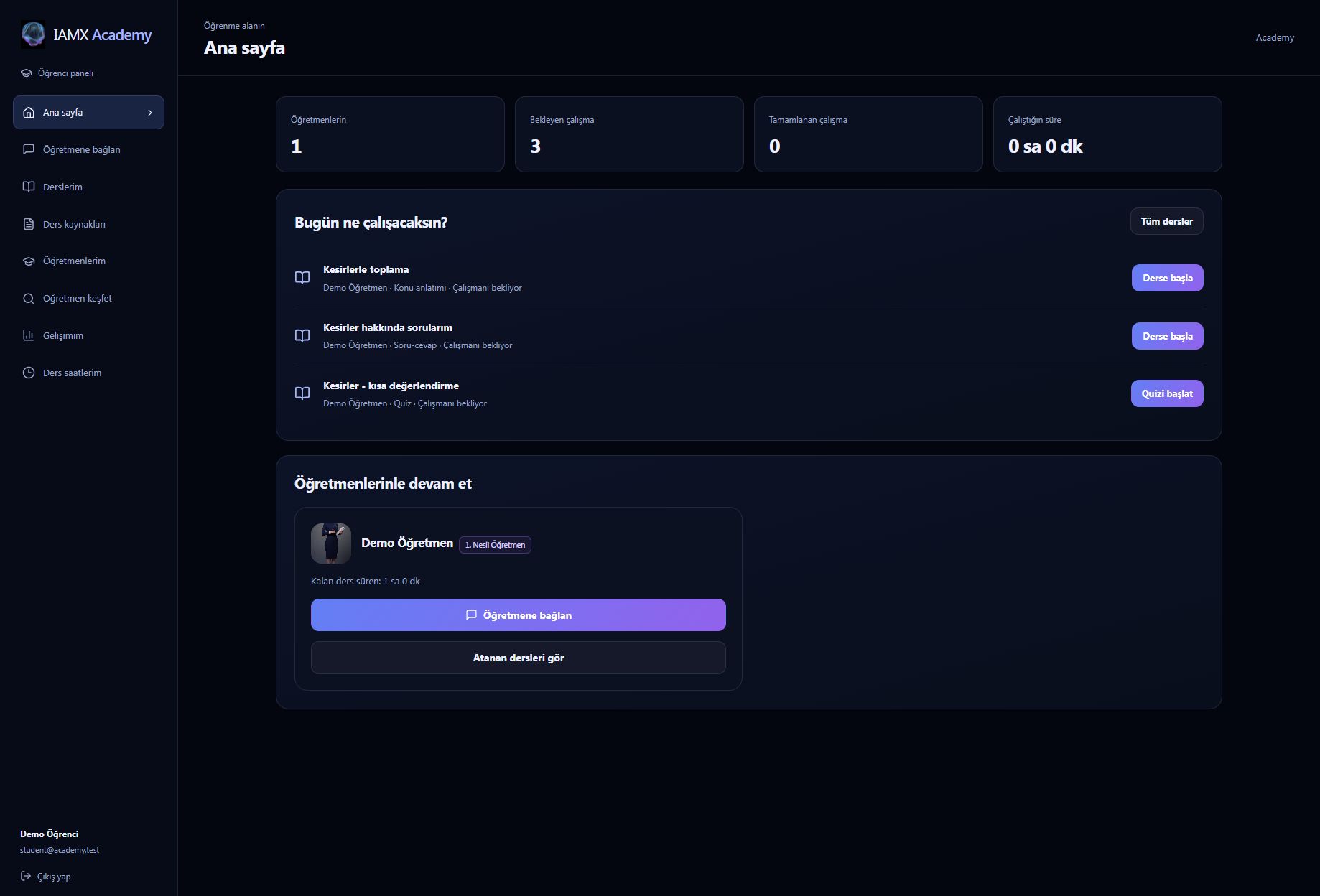
1. Open your student workspace
Create an Academy account with Öğrenciyim, or sign in to an existing account. Your home page shows your teachers, assigned work and recorded study time.
2. Choose a teacher and lesson hours
- Open Öğretmen keşfet. Search by teacher name, subject or level.
- Read a teacher's introduction and choose Ders paketlerini gör.
- Compare the available hours, total price and hourly price. Select the package you want and follow the payment steps when purchasing is available.
- After payment is confirmed, check Ders saatlerim for your balance and purchase status.
You can learn with more than one teacher. Each package belongs to the teacher you selected. Time bought for one teacher does not become a shared balance for every teacher. The IAMX administrator sets the available packages and prices.
3. Ask a question without an assignment
Open Öğretmene bağlan, select your teacher and press the connection button. You need available lesson time with that teacher and a ready avatar. Then press Sohbete başla to begin.
This connects you to the teacher's AI avatar. You do not need to wait for the teacher to assign a lesson. Ask a question such as “Can you explain how to add fractions?” or “Show this example on the board.” The avatar can use the teacher's available course resources to support the explanation.
Use the microphone or type your question and send it. Konuşma opens the conversation panel. The board can show steps and examples when needed; you can also ask for a spoken explanation without board writing.
4. Open an assigned lesson
Go to Derslerim. Filter by teacher if needed, then use Derse başla, Derse devam et or Quizi başlat on the activity. Opening its screen alone does not start using your time: press the start control inside the room when you are ready.
| Lesson type | How to use it |
|---|---|
| Konu anlatımı | Listen to the avatar and follow the board. Ask about something you did not understand. At a check, choose Anladım or Tekrar anlat, then continue when the activity allows it. |
| Soru-cevap | Ask your own questions. Prepared pages are optional. If support cards are available, select one under Ders görselleri ve notları. |
| Quiz | Listen to the question, submit your answer and review the feedback before moving on. |
Answering a quiz
- Let the avatar finish reading the question.
- Click an option, say your answer into the microphone or type it. For multiple choice, an option letter such as “A” or the option text is the clearest answer.
- Review the recorded response and explanation. The avatar presents and explains the quiz; you supply the answers.
- Choose Sonraki soru to continue. On the final question, use Quiz sonucunu kaydet to complete the activity.
If answer buttons are temporarily unavailable, check whether the question is still being read, the room is paused or your answer has already been recorded.
5. Pause when taking a break
The remaining time is shown in the lesson room. Usage starts with Derse başla or Sohbete başla and uses only that teacher's balance. Press Duraklat to pause the session and stop time usage, then Devam et to resume.
For an open question-and-answer session, use Oturumu bitir when finished. For guided work, complete the remaining steps and record the result. Check Ders saatlerim for the balance and recorded usage history.
Speaking and following the board
Allow microphone access when your browser asks. Tap the microphone for hands-free input or hold it for push-to-talk, following the hint on the control. In a question-and-answer session, recognized speech is sent as a question. If microphone access is unavailable, use the text box.
Use Yanıtı dinle to hear the latest reply again when available. If a reply arrived but its audio failed, the room offers Sesi tekrar dene. If the question itself failed to send, use Tekrar gönder.
The board can display your teacher's text and diagrams and the avatar's explanations. Long narrated board content can follow the narration automatically. Ask the avatar to explain a step again if you need more time, or pause the session to read.
Download your teacher's resources
Open Ders kaynakları and select the teacher. You will see enabled resources that the teacher has shared with enrolled students, together with sources from lessons assigned to you. You can also open Ders kaynaklarım in the lesson's conversation panel.
Download the available files for your own study. Text-only resources download as text files. Opening or downloading a resource does not start lesson time, and you do not have to start a conversation first.
Check your progress
Gelişimim shows recorded study time, session counts and assigned or completed work by teacher. Quiz feedback is shown in the lesson room. Your teacher can review answers and topic results from their own panel and use them to plan your next activity.
Common questions
| What you see | What to check |
|---|---|
| No assigned lessons | Your teacher has not assigned a lesson yet. You can still use Öğretmene bağlan when their avatar is available and you have time with them. |
| No connection button or no available time | Check that teacher's balance in Ders saatlerim. If the avatar is not available, ask the teacher to complete their avatar setup. |
| A purchase does not appear in the balance | Check the purchase status and use Bakiyeyi yenile. Pending confirmation is different from a confirmed payment. Contact support with the order details if it remains unresolved. |
| A PDF is missing | Select the correct teacher. Ask them to enable sharing or attach the resource to your assigned lesson, and to keep the source enabled. |
| No sound or microphone response | Check browser microphone permission, your input/output devices and whether the session is started. Use text while resolving the microphone issue. |