

Live streams and events
A virtual presenter that talks to your audience while you stay in control
IAMX lets an AI character answer viewer comments aloud during a live stream while an operator decides what gets answered, or present full screen at an event. IAMX does not broadcast video: you capture the character with OBS or a similar encoder and stream as usual.
In short
IAMX can run an AI character as a virtual presenter: during a live stream it answers viewer comments aloud from an operator-controlled queue while a renderer for the character is connected, and at events it runs full screen in a browser or inside your Unreal Engine project. IAMX does not broadcast video, so you capture the character with OBS or a similar encoder. IAMX has no native YouTube, Twitch, TikTok or Kick chat connectors, so your own script posts chat comments to IAMX's authenticated comment API.
Key facts
| Live streams | Operator console with a comment queue, rule-based spam bans and exact or hand-written lines (free built-in or own-key voices) |
|---|---|
| Renderer | One per character: an Unreal Engine build in cloud mode or the character open in a browser |
| Video output | None from IAMX; capture the character with OBS or a similar encoder |
| Chat sources | Authenticated comment API; no native YouTube, Twitch, TikTok or Kick connectors |
| Events | Full screen in a browser or inside your own Unreal Engine project |
| Usage | Each AI answer uses your plan's usage units; realtime voice characters use more |
How an AI live stream host works with IAMX
You build the character in IAMX Studio. During the show, it answers queued viewer comments aloud the same way it answers any typed question, while the picture and the broadcast stay with your own tools.
- Comment source: a script you run posts your platform's chat comments to IAMX.
- Operator console: IAMX queues the comments for an operator to manage.
- Renderer: an Unreal Engine build in cloud mode or the character open in a browser.
- Encoder: OBS or a similar tool captures the renderer and streams it to your platform.
Comments pile up unanswered until a renderer is connected. Keep exactly one renderer open, and use a character that is not live on your website during the show: another open session of the same character, such as a Studio preview tab or a website visitor, can take over or duplicate the answers, and exact operator lines play in every open session.
The operator console: you decide what gets answered
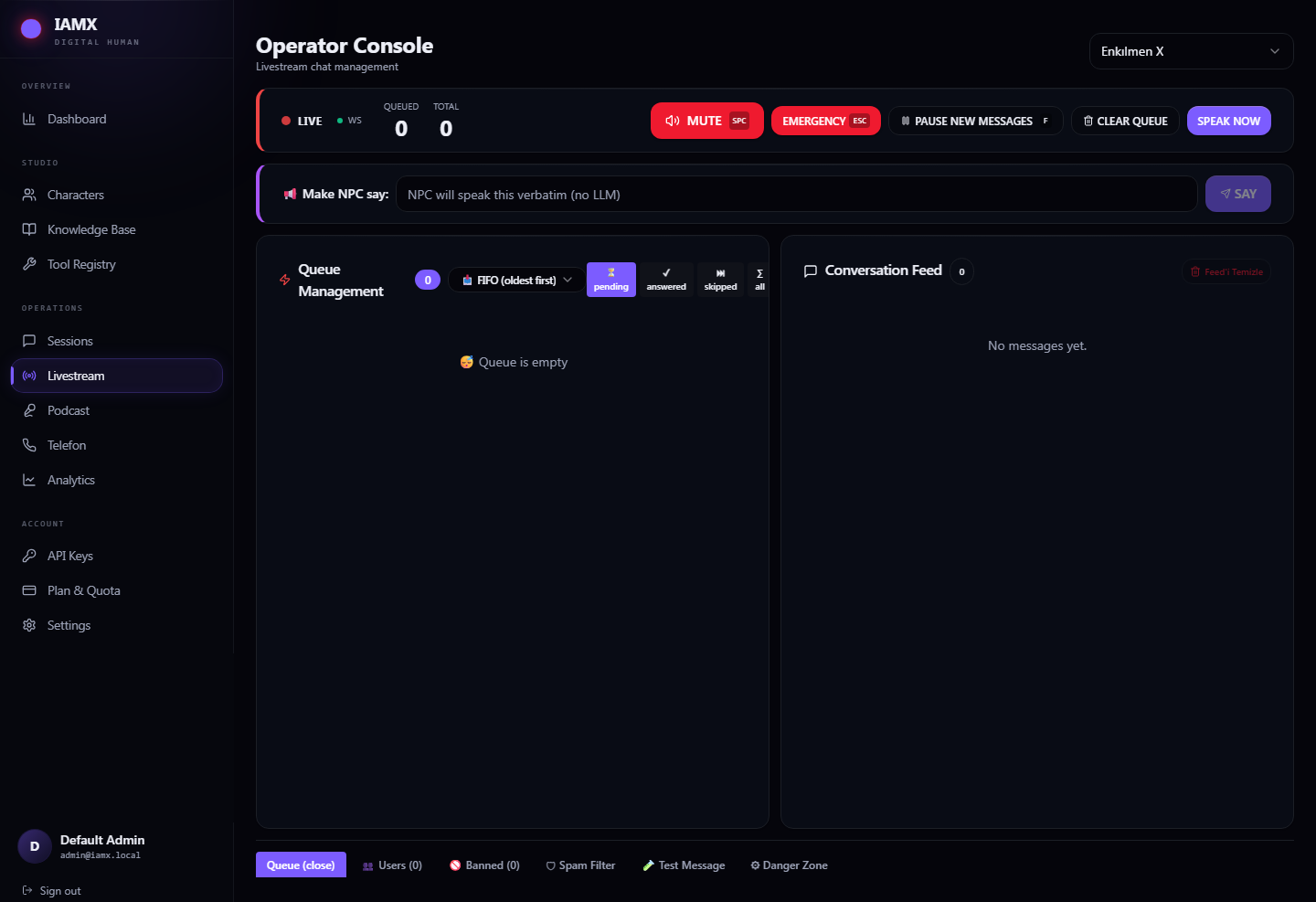
While your character is connected in a renderer, the operator console lets you queue, prioritize, skip, ban and hand-answer viewer comments, which the AI character answers aloud. You can move a good question to the front, requeue a skipped one, write your own reply for the character to read, or pause new comments while you talk yourself. Comments that arrive while intake is paused are discarded, not held.
Operators can make the character say an exact line, such as a sponsor read, or a hand-written reply to a comment, without the AI model when it uses a free built-in voice or your own TTS provider key; IAMX-included ElevenLabs voices and realtime provider voices cannot speak these lines. These lines play on every live session of that character at once. Their lip sync is prepared in the MetaHuman format, so a web 3D avatar may play the audio without matching mouth movement; test it first.
In Unreal deployments, operators can also stop the character mid-answer. With a browser renderer, the MUTE and EMERGENCY buttons do not interrupt the character (EMERGENCY still discards waiting comments), and the queue is answered oldest first apart from comments you move to the front.
Bringing viewer comments into the queue
Any chat source you can script, such as YouTube, Twitch, Kick or your own site, can forward comments to your IAMX queue through the authenticated comment API with an IAMX API key. IAMX has no native connectors for these platforms, and it handles chat only, so the character does not react to gifts, likes or follows.
Built-in spam rules for rate limits, repeated messages, links and banned words can automatically ban viewers. The rules are on by default, apply to your whole workspace and ban a viewer on the first matching comment, including a harmless link, so set them for the audience you expect before going live. Moderation is rule-based, not AI-based.
Going live with an AI host, step by step
Confirm each piece before your audience arrives.
- Check the voice
Preview the character's voice in IAMX Studio. For exact operator lines and hand-written replies, use a free built-in voice or your own TTS provider key.
- Start one renderer
Open the operator console, select the character, then launch your Unreal Engine build in cloud mode or open the character in a browser, and close any other open session of that character. An NPC status appears in the console's status bar once a renderer is connected.
- Test and set rules
Create an IAMX API key for your chat script, post a test comment from the console's Test Message tab, listen for the answer in the renderer and adjust the spam rules.
- Go live
Run your chat script once the stream is live, capture the renderer and its audio in OBS or a similar encoder, and stream to your platform as usual.
Each AI answer uses your plan's usage units, a busy chat produces many answers, and a character on a realtime voice model uses units faster than a standard character. The live stream guide describes the console controls.
A virtual host for events, stages and screens
IAMX characters can present at events full screen in a browser or inside your Unreal Engine project, and an operator can push exact lines from the same console with a free built-in voice or your own TTS key; on a web 3D avatar such a line may play without matching mouth movement. In Unreal deployments, the operator can also stop the character mid-answer. The IAMX Unreal Engine plugin provides prebuilt Windows 64-bit packages for Unreal Engine 5.3 to 5.8 and needs a network connection to IAMX.
For a display or digital human kiosk, the published character page has a full-screen button; device lockdown is set up in the browser or operating system. Visitors can tap the microphone once to keep talking hands-free after the browser is allowed to use the microphone. After a set period of inactivity, a web 3D character can play an animation, a video or a spoken greeting to attract visitors; sound plays only after audio has been enabled on the device.
When Continuity is enabled on a public character, visitors can scan a short-lived, single-use QR code to carry their recent conversation to their phone.
Scripted presentations in the web 3D scene
For planned segments, the Performance Timeline in IAMX Studio arranges animation, narration, music, video, cards and camera shots on a shared clock, and the Scene Director chains your actions, waits and information cards into a guided presentation. Uploaded voice-over narration gets prepared lip sync from the server, so your AI presenter avatar speaks your recorded script.
A Scene Director presentation can start when a visitor taps the scene or after an inactivity delay. With Continue after a conversation turned on, a visitor question pauses it, and the interrupted action restarts from its beginning after the answer. Narration and music wait until audio has been enabled on the device, and animations need a web 3D avatar. These presentations run in the web 3D scene, not in LiveFace, Pixel Streaming or Unreal.
Short clips for your own channels
IAMX Studio can record the web 3D scene of your branded character for up to 60 seconds in the browser, with tab audio where your browser supports it, or save a PNG snapshot when you need a still image. Recording a Scene Director presentation with uploaded narration lets you capture a short scripted segment. LiveFace and Pixel Streaming output are not recorded, and you publish to social networks with your own tools.
Frequently asked questions
Can IAMX stream straight to YouTube or TikTok?
No. IAMX does not broadcast video and has no RTMP output or go-live button. You capture the IAMX character's window with OBS or a similar encoder and stream it to YouTube, TikTok or another platform as usual.
Can the AI host read live chat automatically?
Not by itself. An IAMX character answers live chat only when a script you run posts your platform's chat comments to the IAMX comment API with an IAMX API key. IAMX has no native YouTube, Twitch, TikTok or Kick connectors and does not react to gifts, likes or follows.
Can an IAMX character appear in Zoom or Microsoft Teams?
No. IAMX has no virtual camera, NDI, SDI or Spout output and no meeting integration, so it offers no supported way for an IAMX character to join or take part in Zoom, Microsoft Teams or Google Meet calls.
Can I record videos of my AI presenter?
IAMX Studio records the web 3D scene for up to 60 seconds in the browser, for short clips you post yourself. It does not record LiveFace or Pixel Streaming output or post to social networks.
How much control does the operator have?
While a renderer is connected, the IAMX operator console lets an operator prioritize, skip and ban viewer comments, and have the character speak hand-written replies or exact lines when it uses a free built-in voice or your own TTS provider key. Stopping the character mid-answer works only in Unreal deployments.
Does an IAMX virtual presenter need Unreal Engine?
No. An IAMX character can answer a live stream queue or present at an event from a browser, but the operator's stop controls do not reach a browser renderer. The IAMX Unreal Engine plugin is optional, runs on Windows 64-bit, and adds your own Unreal scenes and an operator control that stops the character mid-answer.
Can the AI host run a stream on its own?
IAMX does not offer an autonomous stream host. A live show with an IAMX character needs a connected renderer, an encoder such as OBS and a comment source you run, and IAMX makes no promise of unattended operation, so plan for an operator watching the console.
Try your own workflow.
Prepare a character, ask real questions and check the experience on the device you intend to use. Contact us to discuss the scope of your setup.
Prepared by IAMX. Features and requirements.