Website experience
Let your avatar understand the page a visitor is viewing, offer spoken help and guide them to the next step.
Open your character and choose Experience → Site guide. Start with your website address. You do not have to enter every public page separately, and visitors do not have to open an Explore panel to ask for help.
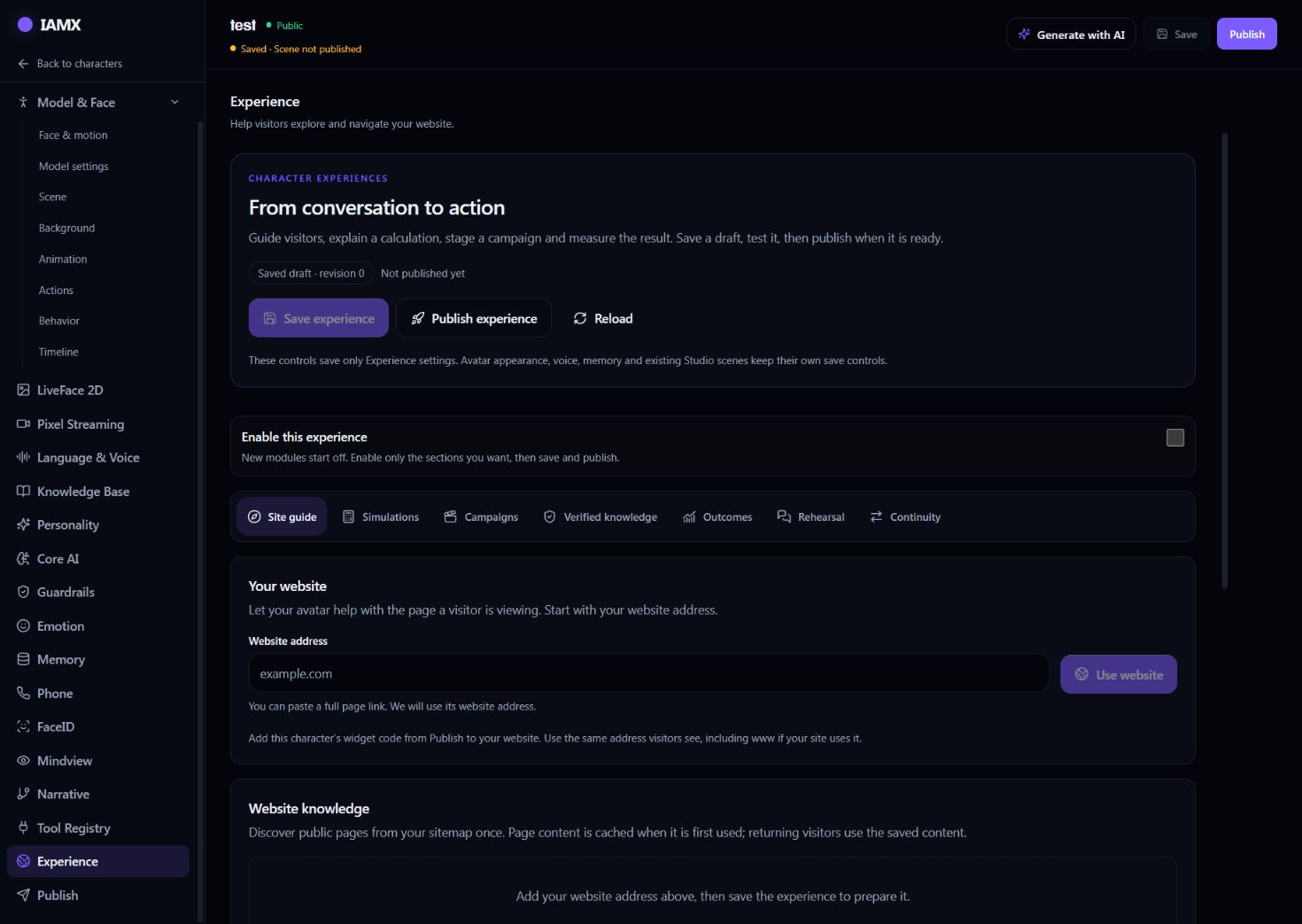
Connect your website
- Enter Website address and select Use website. Use the address visitors actually see, including www if your website uses it. You can paste a full page link; the panel keeps its website address.
- Enable the help you need. Turn on Understand the current page. Enable Speak after a short pause for spoken offers and Keep the conversation across pages to retain recent context while navigating.
- Select Save experience. Website preparation uses your saved settings.
- Select Prepare website. IAMX discovers the public page list from the website's sitemap. Check the status and indexed page count under Website knowledge.
- Select Publish experience. Make sure this experience and its Site guide are enabled, save any remaining edits, then publish. New sessions use the published settings.
- Install this character's widget. Copy the generated code from Publish and place it on the pages where you want help. If it is already installed, refresh the page and start a new conversation to check the result.
How the avatar knows the current page
The website widget supplies the current page address and title. IAMX matches that address to the connected website and enabled page rules, then uses the prepared public website knowledge to help answer the visitor. Put the widget on each page where this should work, or in your website's shared layout.
A new setup can cover the whole website. Open Advanced settings → Selected public pages only when you need different behavior for a section. For example, use /forum for the forum or /products for product pages.
| Page matching | Use it for |
|---|---|
| Only this page | A particular page, such as /contact. |
| This page and its subpages | A section such as /products and its child pages. The path / covers the website. |
| Content area (optional) | A specific public section, such as #product-description. Leave empty to use the main page content. |
Page paths start with / and do not include the domain, query string or a #fragment. The most specific matching page rule is used. Connected websites must match the address actually opened by the visitor.
Prepare once, inspect and refresh when needed
Indexed pages are discovered page addresses. Cached pages are pages whose public text has already been collected. Discovering a sitemap does not immediately read every page: content is cached when it is first used and reused afterwards.
- Choose View pages beside a connected website.
- Search or select a page. Inspect its address, title, status, last update and cached text.
- Choose Refresh page to fetch that page's current public content. If it has never been cached, this also lets you prepare it before a visitor asks about it.
- Choose Refresh website when the sitemap or page list changes. Inspect important pages again after changing their content.
Offer help aloud after a pause
Turn on Speak after a short pause and choose a delay between 3 and 120 seconds. The avatar waits for inactivity instead of speaking over the visitor. For a page-specific greeting, open the page rule in Advanced settings, enable Speak on this page and enter optional Custom spoken help.
For a Turkish-speaking forum assistant, an example is: “Forum sayfasındasın. Burada aradığın bir şey var mı?” Leave the custom text empty to let the character create a short offer using its language and personality.
Spoken help is remembered for that page during the visitor's browser-tab session where browser storage is available. It is not meant to repeat on every return to the same page. A cooldown also prevents a new page greeting from following the previous one immediately.
Help visitors find another page
The prepared page list helps the character understand destinations. For a specific route you want to control, add a guide action in Advanced settings → Guide actions.
- Add an action and name it clearly. For example, “Open documentation.”
- Explain when to offer it. In “When should the character offer this?” write the phrases and intent you expect: “When a visitor asks for docs, documentation, the user guide or dokümanlar.”
- Select Open a page. Enter the actual destination URL on your connected website.
- Save experience and Publish experience. Ask for that destination in a new widget conversation.
- Confirm the offered action. Opening a page or clicking an approved button always asks the visitor for confirmation.
Other guide actions can highlight an element or click an approved button. These use an explicitly configured page element such as #pricing or [data-iamx-id="pricing"]. Your website needs that element for the action to work. Add meaningful descriptions rather than relying only on a short label.
Keep conversation context across pages
Enable Keep the conversation across pages for the same character on the same website. Install the same widget across the relevant pages. The visitor's recent context can then be restored when moving between them.
A full page navigation still reloads the website and its widget. Context continuity does not promise uninterrupted audio during that reload. Browser storage restrictions, a different website address or an expired continuation can prevent restoration.
The separate Continuity section handles transfer to another device. That flow uses a temporary link or code and asks the visitor to approve the transfer on the current device and accept it on the destination.
What the other Experience sections do
| Section | Start here when you need |
|---|---|
| Simulations | A reviewed calculator with inputs, ranges and a spoken explanation of the result. Save the draft, then use Calculate preview to check its numbers. |
| Campaigns | A timed explanation using narration, character actions, video, music or information cards. Review and approve its content and timing before using it. |
| Verified knowledge | Approved sources for claims in simulations and campaigns, with source review information. |
| Outcomes | Recorded visitor events and comparisons between configured greeting or campaign variants. An empty report means there are no recorded outcomes for the selected period. |
| Rehearsal | A practice conversation with a role, objective and scoring criteria. Review the conversation evidence in its evaluation. |
| Continuity | An explicit, temporary transfer of recent conversation context to another device. |
Enable only the sections you want to use. Experience settings have their own saved draft and published version; changing one section does not replace your avatar, voice or Studio scene.
Check the visitor experience
- Open a page containing the published widget and allow audio with a tap.
- Ask “What can I find on this page?” and compare the answer with the page's actual content.
- Pause for the configured interval and check the spoken offer.
- Ask for a destination, accept its confirmation and check where it opens.
- Ask a follow-up after moving to another page to check retained context.
- Repeat on a phone, including microphone permission and the widget's opening state.
Common questions
| Question | What to do |
|---|---|
| Do I need Add public page for every page? | No. Use the website-wide rule for general help. Add specific rules only for different messages, sections or reading limits. |
| Why does it not recognize my website? | Check the connected address, including www, page rules, widget character and published Experience version. |
| Why did it not speak after the delay? | Check the speech toggle, audio permission and current voice. Wait without interacting. The page may already have received its once-per-session offer. |
| Why are cached pages fewer than indexed pages? | Public text is collected as pages are used. Open View pages and Refresh page to prepare a particular page now. |
| Why is its answer based on old text? | Inspect the cached content and refresh the changed page. Refresh the website list if addresses were added or removed. |
| Why does my new setup not appear? | Save experience, then Publish experience. Refresh the visitor page and test in a new conversation. |
| Why can it not click a button? | Check the configured element selector, allowed website and current page. The visitor must confirm a click action. |
Continue with Website embed for installation or Avatar Studio for appearance, scenes and animation.
Maintained by IAMX. Updated .