Building a character
Define the character in the panel, test it in Avatar Studio and publish the scene your visitors should see.
The panel at iamxlive.com is where you configure a character's identity, appearance, voice, AI and actions. Your web embed or Unreal integration connects to that character. Save the settings you change, then publish the scene or website Experience when you are ready to update those parts of the visitor experience.
This page walks through each tab of the character editor, how the identity fields shape every reply, and how the connection ID links your build to the right character. If you're setting up for the first time, start with the Quickstart and come back here to flesh out the character.
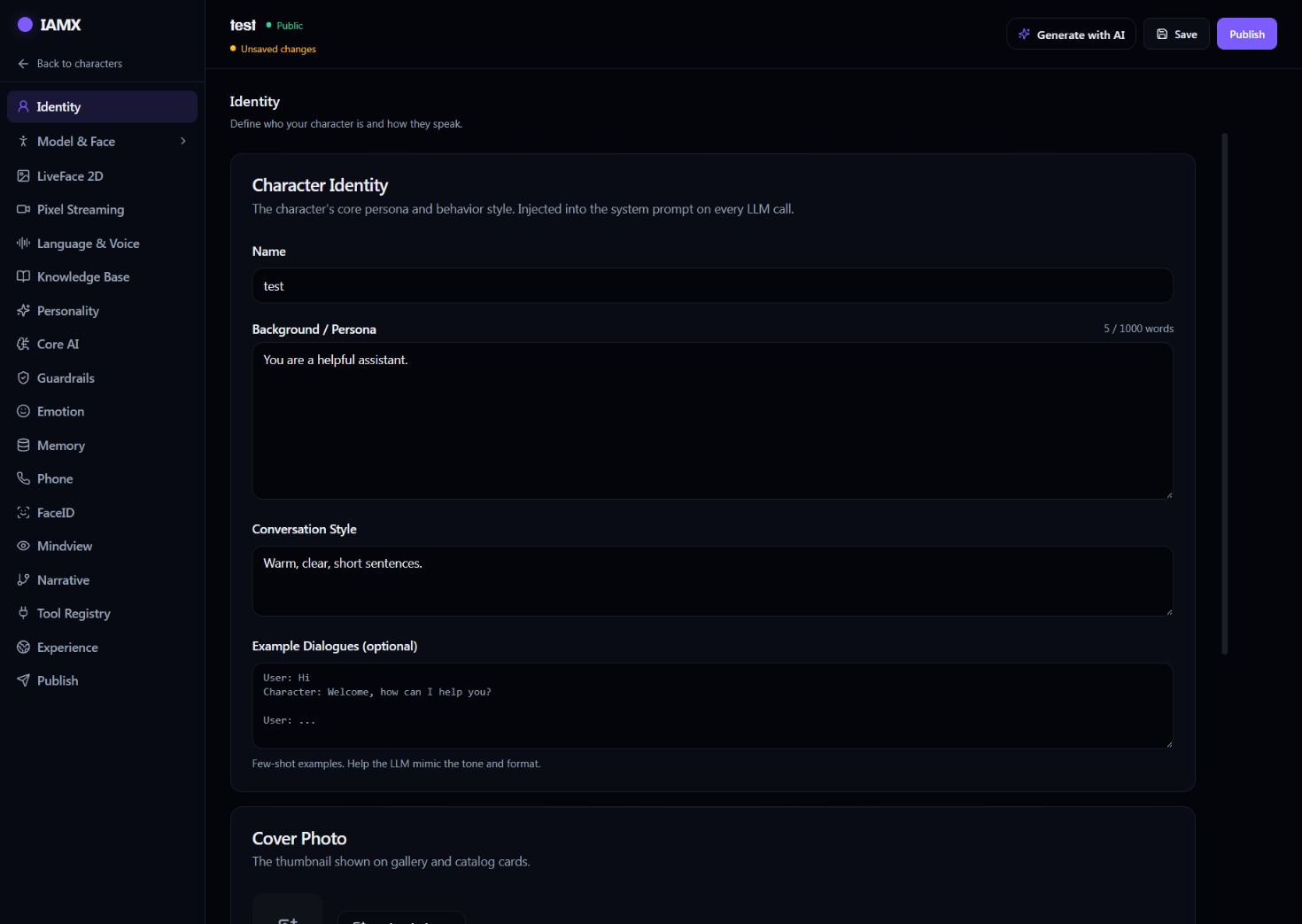
Character tabs
The editor is organized into tabs, each owning one concern of the character. You don't have to fill every tab to go live — a name, a voice, and a core AI model are enough to have a talking character in minutes — but the richer tabs (Knowledge, Personality, Narrative, Tools) are what turn a chatbot into a believable, capable agent.
| Tab | What it controls | Notes |
|---|---|---|
| Identity | The character's name, background/persona, and speaking style. | Injected into every reply as the system context. This is the single most important tab — see Identity & persona below. |
| Model & Face | The look: a MetaHuman, a custom-rigged character, or a LiveFace photo avatar driven from a single still image. | Choose the embodiment that matches your build. All three lip-sync and emote from the same speech stream. |
| Language & Voice | The spoken language (30+ supported) and the specific voice the character speaks with. | Language and voice are independent — a single character can be authored in one language and voiced in another. |
| Core AI | Which AI model powers the character's reasoning, and whether it runs in realtime or standard mode. | Pick from GPT, Claude, Gemini, or a local Ollama model. See Models. |
| Knowledge | The documents the character answers from — manuals, policies, catalogs, FAQs. | Grounds replies in your material instead of the model's general training. See Knowledge. |
| Personality & Emotion | Behavior tuning, mood dynamics over a conversation, and guardrails on what it will and won't do. | Shapes how it says things and how it reacts. See Emotions. |
| Narrative | Goal-driven scenarios and branching flows the character works through. | For guided experiences — onboarding, triage, structured interviews. See Narrative. |
| Tools | Actions the character can call in your app, or your own HTTP APIs it can reach out to. | Turns conversation into action — bookings, lookups, form submissions. See Actions. |
How the tabs work together
Think of the tabs as layers that stack into a single running character:
Who it is
Identity, Avatar, and Language & Voice define the character your users see and hear — its personality, its face, and its voice.
How it thinks
Core AI, Knowledge, and Personality & Emotion decide how it reasons, what facts it draws on, and how it behaves under pressure.
What it does
Narrative and Tools give it goals to pursue and real actions it can take on your behalf.
Identity & persona
The Identity tab is where a character stops being a generic assistant and becomes yours. Three fields — name, background/persona, and speaking style — are combined into the system context that is prepended to the model on every single turn of every conversation. The character never "forgets" who it is, because its identity is re-established with each reply.
Background / persona
This is the character's story and role: who they are, where they work, what they know, what they care about, and what they're here to do. The model treats it as ground truth about itself.
Name:        Deniz
Persona:     You are Deniz, a front-desk concierge at the Marmara
             Hotel. You have worked here for six years and know the
             building, the neighborhood, and the local transit inside
             out. You are warm, unflappable, and genuinely proud of
             the hotel. You never invent room availability or prices —
             if you are unsure, you offer to check.
Speaking:    Short, friendly sentences. A little playful. Always greet
             guests by acknowledging them first. Avoid corporate jargon.
Speaking style
Where the persona defines what the character knows and is, the speaking style defines how it talks — sentence length, formality, warmth, humor, catchphrases, and any hard rules about tone. This is what makes two characters running on the same AI model sound like completely different people.
Writing a strong persona
- Be concrete, not adjectival. "You've worked the night shift at this station for ten years" lands harder than "You are experienced and helpful."
- Give it boundaries. State what it must never do — invent prices, give medical advice, promise refunds. Guardrails in the persona are reinforced by the Personality & Emotion tab.
- Name the audience. Telling the character who it's talking to (guests, patients, first-time buyers) shapes its default assumptions.
- Set the fallback behavior. Decide what it does when it doesn't know — "offer to check," "hand off to a human," "ask a clarifying question."
- Keep it tight. A focused half-page persona outperforms a sprawling one. Move facts it should answer from into Knowledge, and keep the persona about character.
Character ID and access
A Character ID identifies which character your application should open. Find it in the character's Publish section, alongside the generated website and Unreal connection examples.
- Open the character → Publish. Check that you are connecting the intended character.
- For a website, choose a template and copy its generated code. It already includes the Character ID. Follow the web integration guide for installation.
- For Unreal, copy the Character ID and follow the UE Plugin example. Supply the authentication required by your integration; the ID alone is not an API key.
- Check visibility before testing as a visitor. Private characters require authorized access. Unlisted and Public characters allow visitors to talk without entering a key; those conversations use your plan's quota.
<!-- The generated website widget includes the character identifier. -->
<script src="https://iamxlive.com/iamx-widget.js"
        data-character="YOUR_CHARACTER_ID"></script>
The ID stays the same when you edit the character. A public widget deliberately includes it in the page source. Unlisted allows access through the link; it is not private access control. Keep actual API keys and sign-in tokens private, and do not add them to a publicly accessible page.
A typical build order
You can fill the tabs in any order, but this sequence gets you to a convincing character fastest:
- Identity — Name it and write its persona and speaking style first; everything downstream leans on this.
- Core AI — Pick the model and mode. Realtime for snappy back-and-forth, standard for maximum reasoning. See Models.
- Language & Voice — Choose the spoken language and the voice that fits the persona.
- Avatar — Attach the look: MetaHuman, custom rig, or LiveFace photo avatar.
- Knowledge — Upload the documents it should answer from so replies are grounded in your material.
- Personality & Emotion, Narrative, Tools — Layer in mood dynamics, guided flows, and real actions as your experience calls for them.
- Connect — Copy the connection ID into your build and run.
Next steps
Pick a brain
Compare GPT, Claude, Gemini, and Ollama, and choose realtime vs standard mode. Models →
Ground it in your docs
Upload manuals, policies, and catalogs so the character answers from your material. Knowledge →
Let it act
Wire up actions in your app and calls to your own APIs. Tools & Actions →
Questions or want to show off a character you built? Join the community on the forum, read build notes on the blog, or grab the latest plugin from GitHub releases.