Custom avatars
IAMX is not MetaHuman-only — drive any rig with blend shapes.
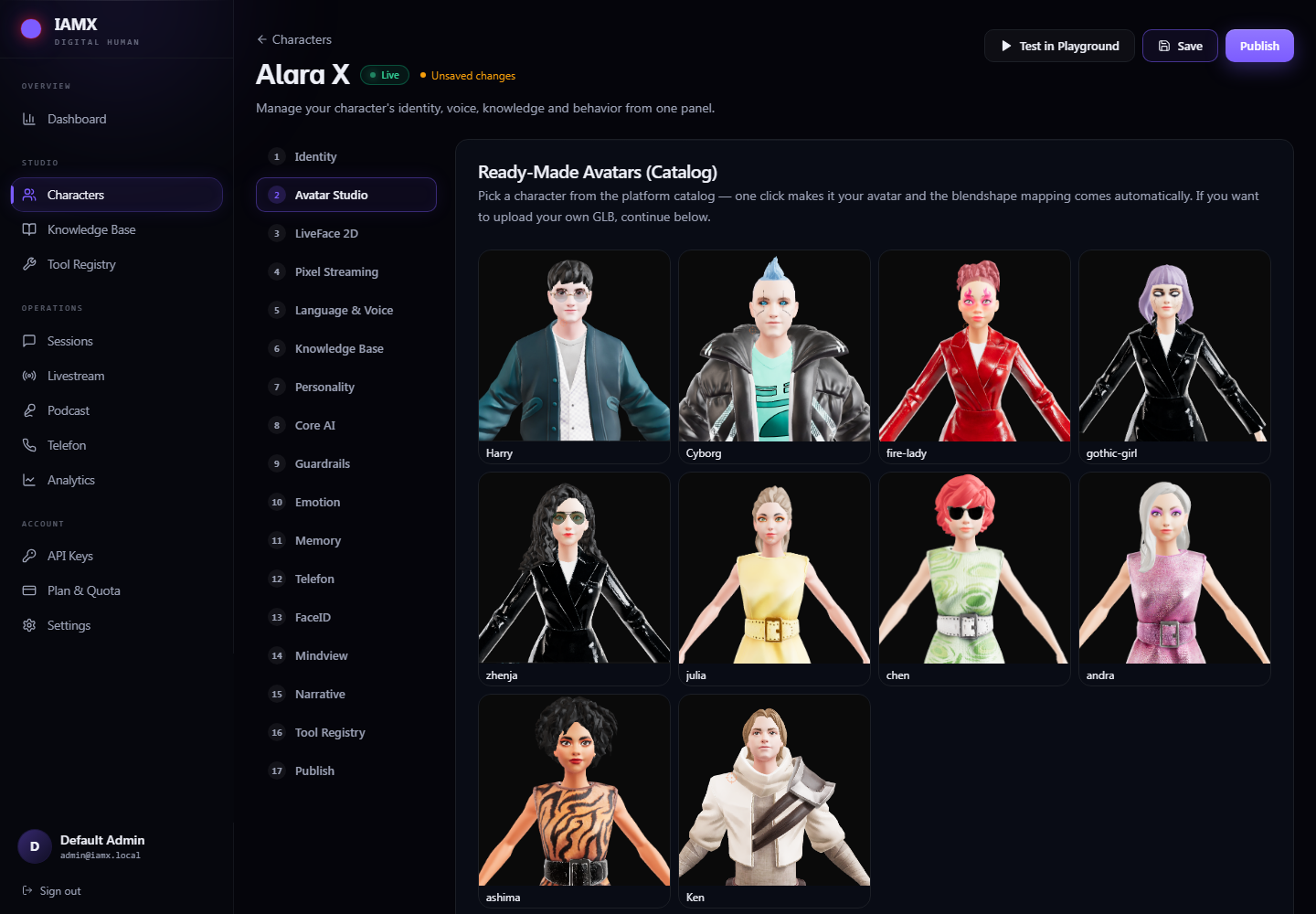
Every conversation IAMX runs — the speech, the reasoning, the emotion, the lip movement — is authored against a neutral, rig-agnostic set of facial controls. That means the character your audience sees is entirely your choice. Drop in a MetaHuman and it just works. But so does a Character Creator 3/4 export, an iClone character, a Daz figure, a Ready Player Me avatar, a VRoid model, or literally any skeletal mesh in your project that ships with blend shapes / morph targets on its face.
There is no proprietary avatar format, no re-topology step, and no "convert to MetaHuman" pipeline to survive. If your mesh can move a morph target, IAMX can perform through it. This page explains how the retarget works and how to wire a non-MetaHuman character up in a few minutes.
MetaHuman
Zero configuration. IAMX writes straight to the standard MetaHuman facial controls out of the box.
Creator pipelines
Character Creator 3/4, iClone, Daz, Ready Player Me, VRoid — all expose named blend shapes IAMX can target.
Anything else
Any skeletal mesh with morph targets works, including your own custom facial rig from Blender or Maya.
How the retarget works
The heavy lifting happens in the cloud and arrives as neutral facial controls — a compact stream of expression values that describe a performance without assuming any particular mesh. Think of them as "how open is the jaw", "how wide is the smile", "how pursed are the lips", expressed as normalized 0–1 curves rather than vertex positions baked for one specific head.
On the Unreal side, the IAMX component takes that stream and resolves it against your character in one of two ways:
Built-in mapping (MetaHuman)
When the target is a MetaHuman, IAMX applies the controls directly to the standard facial control set. Nothing to configure — the names already line up.
Custom mapping (your rig)
When the target is a custom character, IAMX routes each control to your blend-shape name through a mapping table you fill in once. The performance is identical; only the destination names change.
Because IAMX writes values to named morph targets rather than driving a specific bone rig, it is fully decoupled from how your face was built. Whether your mouth shapes came from an ARKit-style export, a Character Creator "Extended" facial profile, or a hand-authored rig, IAMX only needs to know which name on your mesh corresponds to each of its controls.
  Cloud (rig-agnostic controls)          Your Unreal character
  ┌───────────────────────────┐          ┌──────────────────────────┐
  │  jawOpen        0.62       │          │                          │
  │  mouthSmile_L   0.18       │  ──────▶ │   Custom Blend Shape      │
  │  mouthSmile_R   0.20       │  mapping │   Mapping (fill once)     │
  │  mouthPucker    0.05       │  table   │                          │
  │  eyeBlink_L     0.00       │          │   jawOpen → Merged_Open... │
  │  ...                       │          │   mouthSmile_L → V_Wide   │
  └───────────────────────────┘          └───────────┬──────────────┘
                                                      │ direct morph write
                                                      ▼
                                            Facial performance on YOUR mesh
Set it up
Add the IAMX component to your character actor as usual (see /docs/quickstart), then enable the custom mapping and fill in the table. This is a one-time step per character type.
- Tick
Use Custom Character Mapping— on the IAMX component's details panel, enableUse Custom Character Mapping. This tells IAMX to stop assuming MetaHuman control names and route through your table instead. - Fill
Custom Blend Shape Mapping— this is a map of IAMX control → your mesh's blend-shape name. Add one row per control you want driven. For examplejawOpen → Merged_Open_Mouth. Any control you leave out simply isn't driven, which is a convenient way to disable shapes your rig doesn't have. - Point at the right mesh — make sure the component targets the skeletal mesh component that actually carries the face morph targets. If your character has a separate head mesh, select that one.
- Speak a test line — trigger a conversation from the panel at iamx.live or in PIE and watch the mouth. Adjust any rows that look off, then you're done.
Example mapping table
Below is a representative slice of a mapping for a Character Creator–style export. Your exact right-hand names depend on how your character was exported — open the mesh's morph target list in Unreal and copy the names verbatim.
| IAMX control | Your mesh blend-shape name | Drives |
|---|---|---|
jawOpen | Merged_Open_Mouth | Jaw drop / open vowels |
mouthClose | Mouth_Close | Lip closure on m / b / p |
mouthPucker | Mouth_Pucker | Rounded o / u / w |
mouthFunnel | Mouth_Funnel | Funnel shape on oo |
mouthSmile_L | Mouth_Smile_L | Smile corner (left) |
mouthSmile_R | Mouth_Smile_R | Smile corner (right) |
jawLeft / jawRight | Jaw_L / Jaw_R | Lateral jaw motion |
eyeBlink_L | Eye_Blink_L | Blink (left) |
browInnerUp | Brow_Raise_Inner | Expressive brow lift |
_L vs .L) in the right-hand column. Open the skeletal mesh asset and copy the name straight from the morph target list.What you get
Once the mapping is in place, the facial performance is written straight to your morph targets every frame the character speaks. There are a few important consequences of doing it this way:
- It layers cleanly over your body animation. IAMX only touches the facial morph targets you mapped. Your existing body animation, idle loops, gestures, and AnimGraph state machines keep running untouched — the talking face is composited on top, not swapped in.
- No re-topology. Your mesh keeps its own topology, UVs, and materials. IAMX never asks you to reshape or re-skin anything.
- No MetaHuman conversion. You don't route your custom character through a MetaHuman rig to borrow its face. Your character stays your character.
- Same pipeline, any character. The LLM (GPT, Claude, Gemini, or a local model via Ollama), the voice, and the timing are identical to the MetaHuman path. Only the destination names differ.
In practice this means you can build one interaction — objectives, actions, knowledge, voice — and reuse it across a whole cast of visually different avatars, MetaHuman and custom alike, without rewiring the conversation logic.
Troubleshooting
| Symptom | Likely cause | Fix |
|---|---|---|
| Mouth doesn't move at all | Use Custom Character Mapping left off, or wrong mesh targeted | Tick the box; confirm the component points at the mesh that owns the face morph targets |
| Some shapes work, others don't | Typos / mismatched names for the missing rows | Copy blend-shape names verbatim from the mesh's morph target list |
| Lips move but body freezes | Facial anim accidentally overriding the body track | IAMX only writes mapped morphs — verify your body AnimGraph is still evaluating |
| Gaze doesn't follow | Look-at nodes still pointed at MetaHuman bones | Re-target look-at to your rig's eye/head bones |
Next steps
Wire the pipeline
Set up the LLM, voice, and interaction basics in /docs/quickstart.
Blueprint API
Trigger conversations, actions, and events from your graphs — see /docs/blueprint-api.
Questions about a specific export from Character Creator, iClone, Daz, Ready Player Me, or VRoid? Share your morph target list on the forum — mapping recipes for common rigs are collected there and on the blog.